

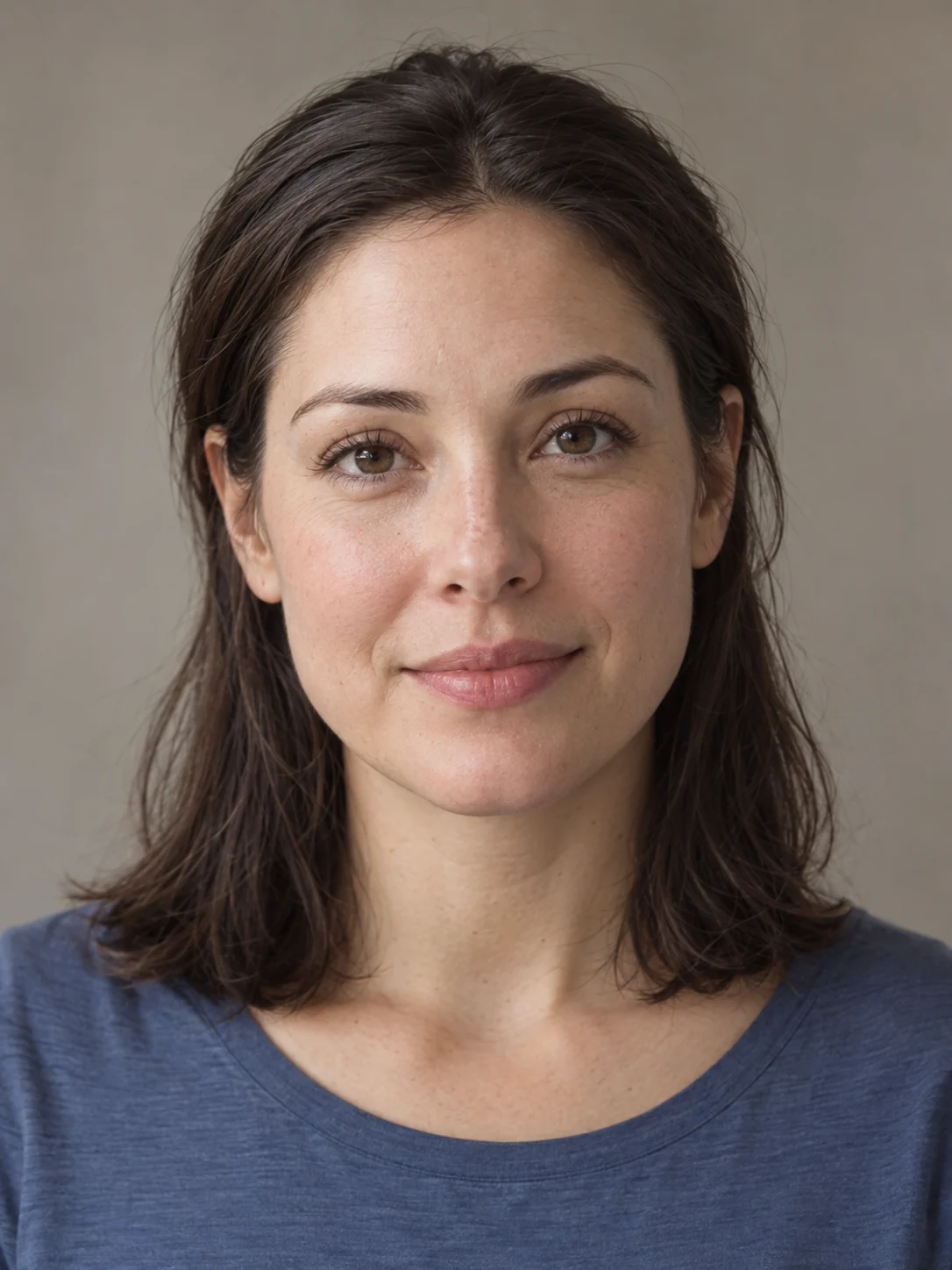
AI Crying Effect
Turn a portrait into a quiet, tearful moment. Add one photo and make a short emotional clip of your own.
SceneWish turns a portrait, pet photo or illustration into a moving scene. Add your photo to the image to video generator, or start from an effect you can watch first.
Add your idea and any required inputs.
Watch a SceneWish example and use its recorded recipe. External inspiration is listed separately with its source and an unverified starting prompt.
Turn a portrait into a quiet, tearful moment. Add one photo and make a short emotional clip of your own.

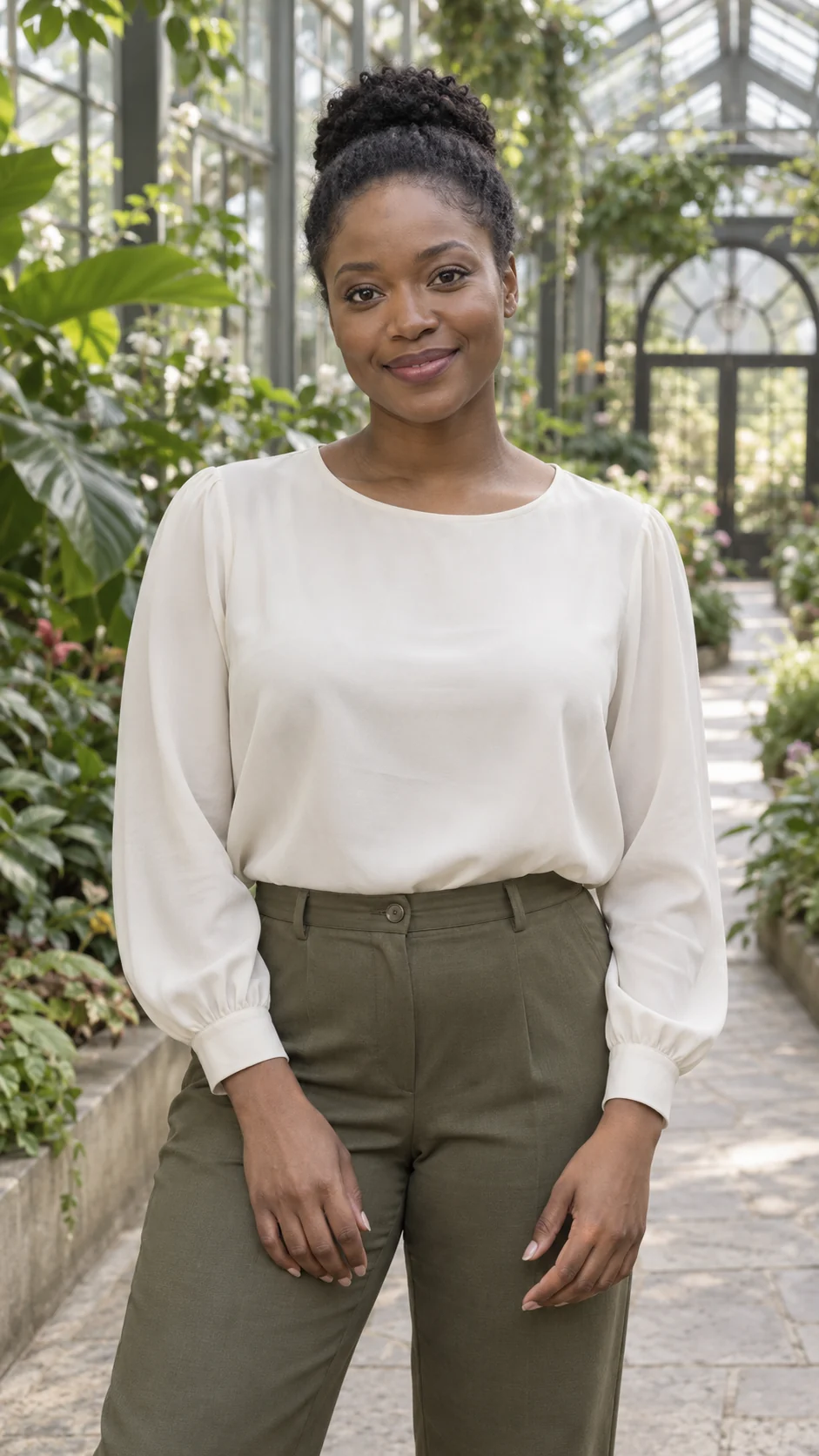
The portrait becomes a short greeting with a small hand gesture.
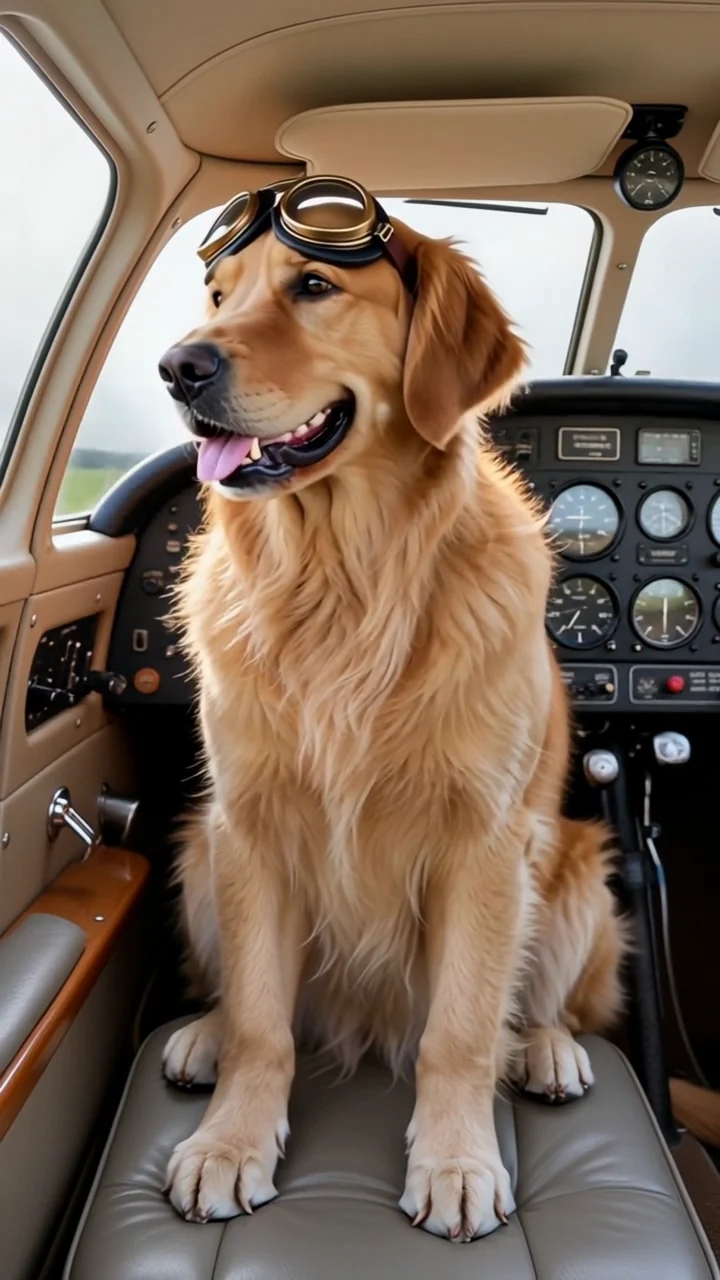

Put your dog in a cockpit scene. Start with one clear photo of your dog.
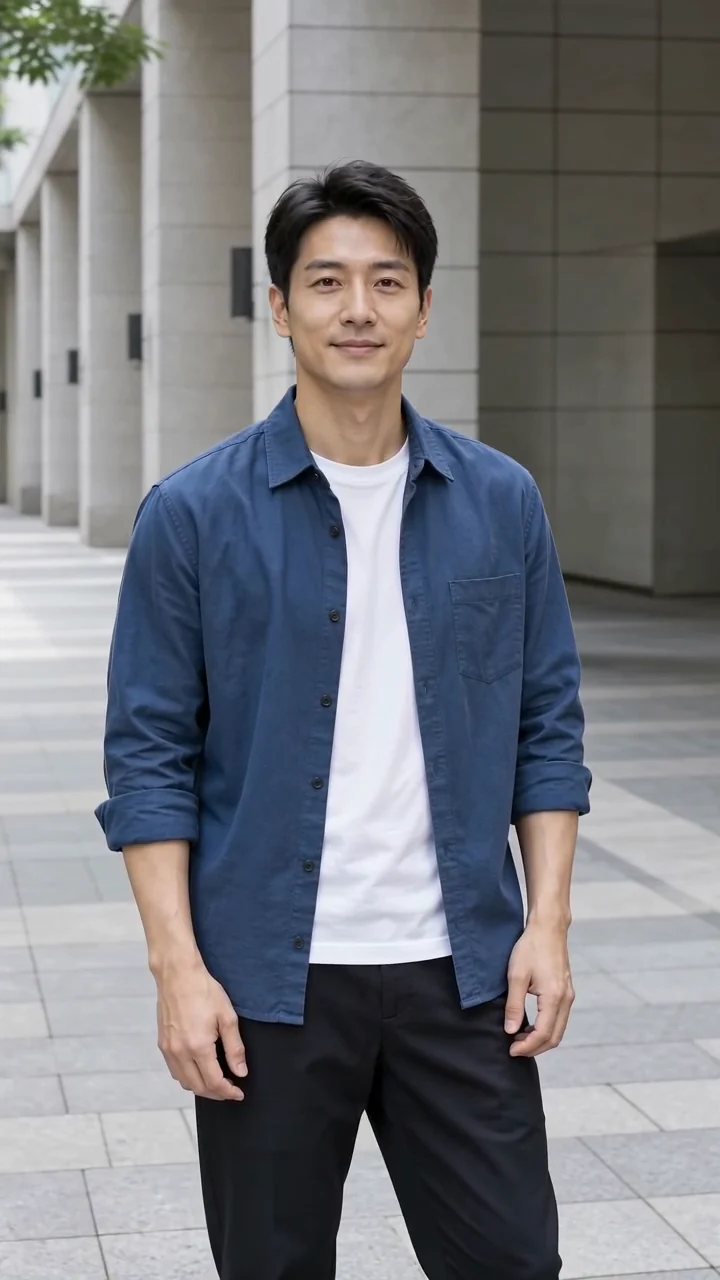
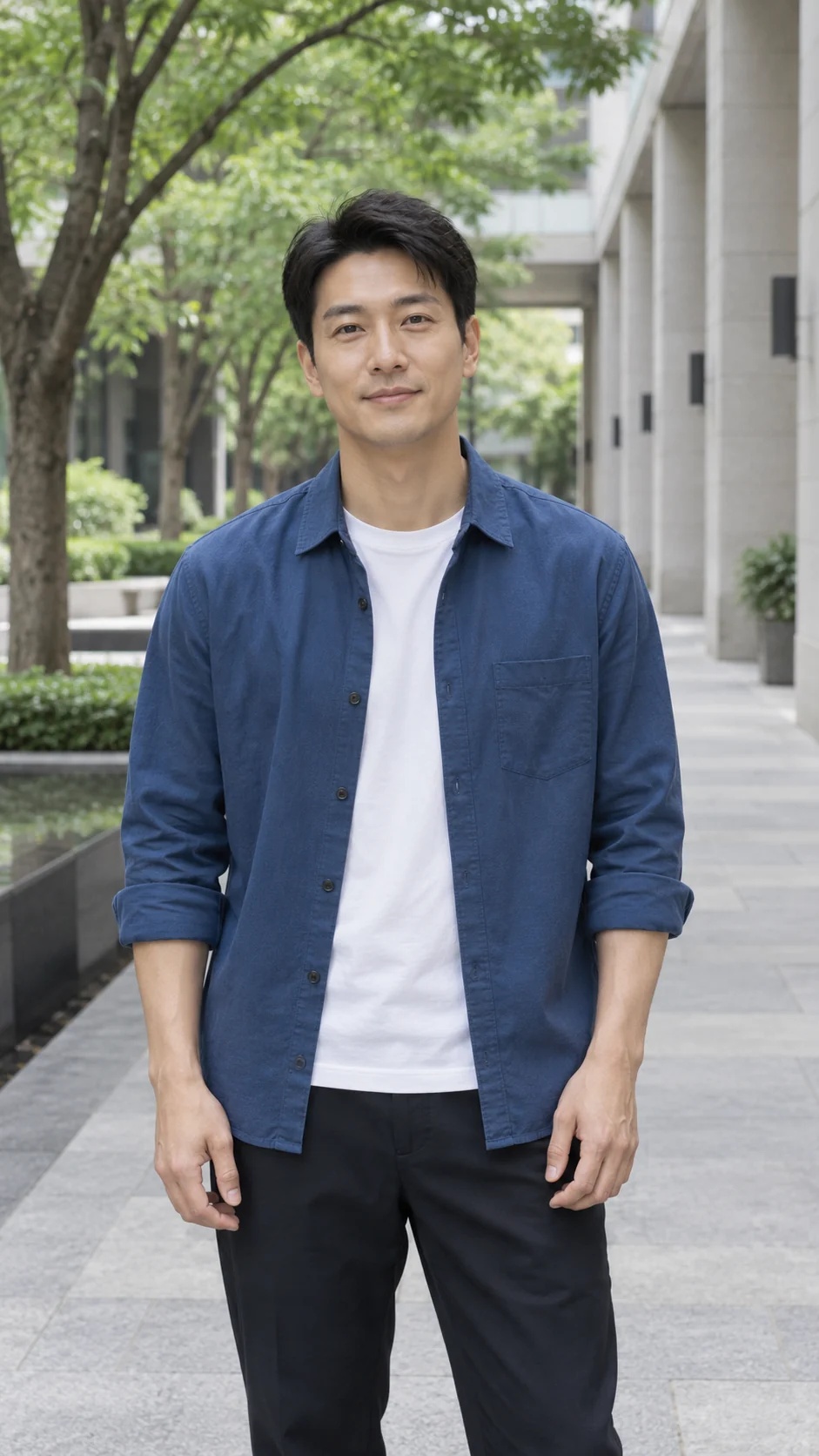
The source portrait remains still while the background shifts with the camera.
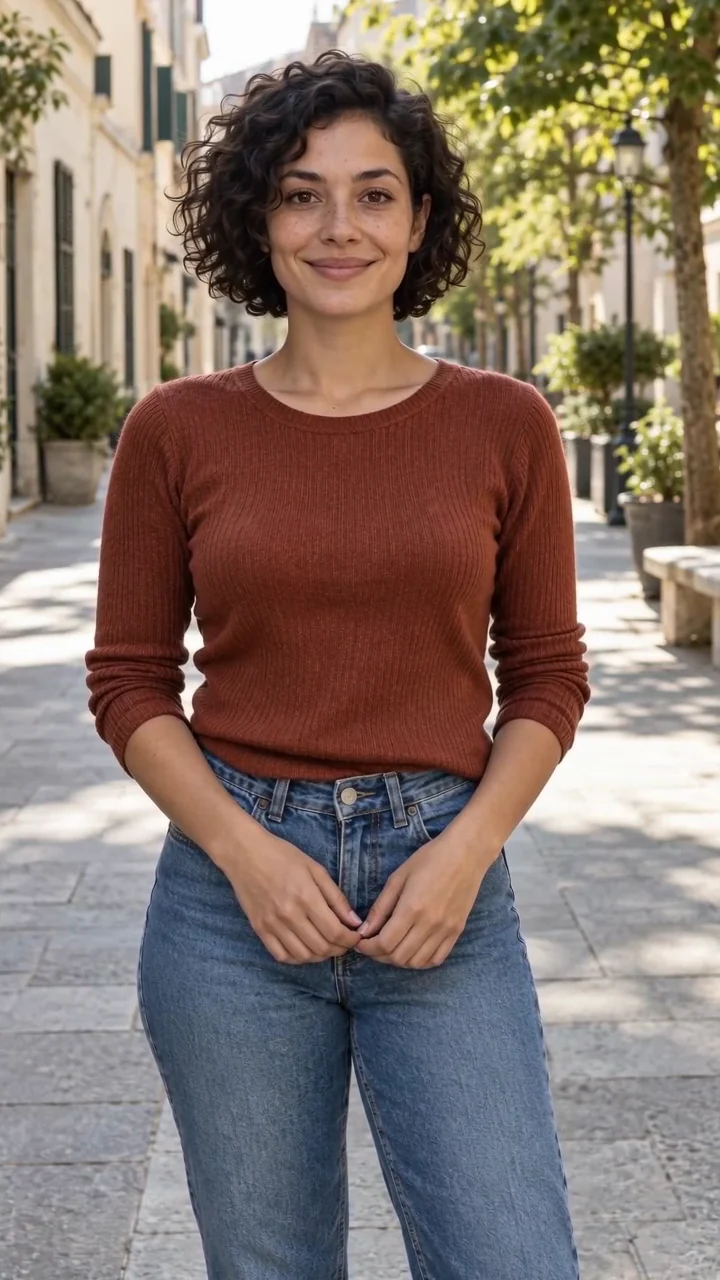
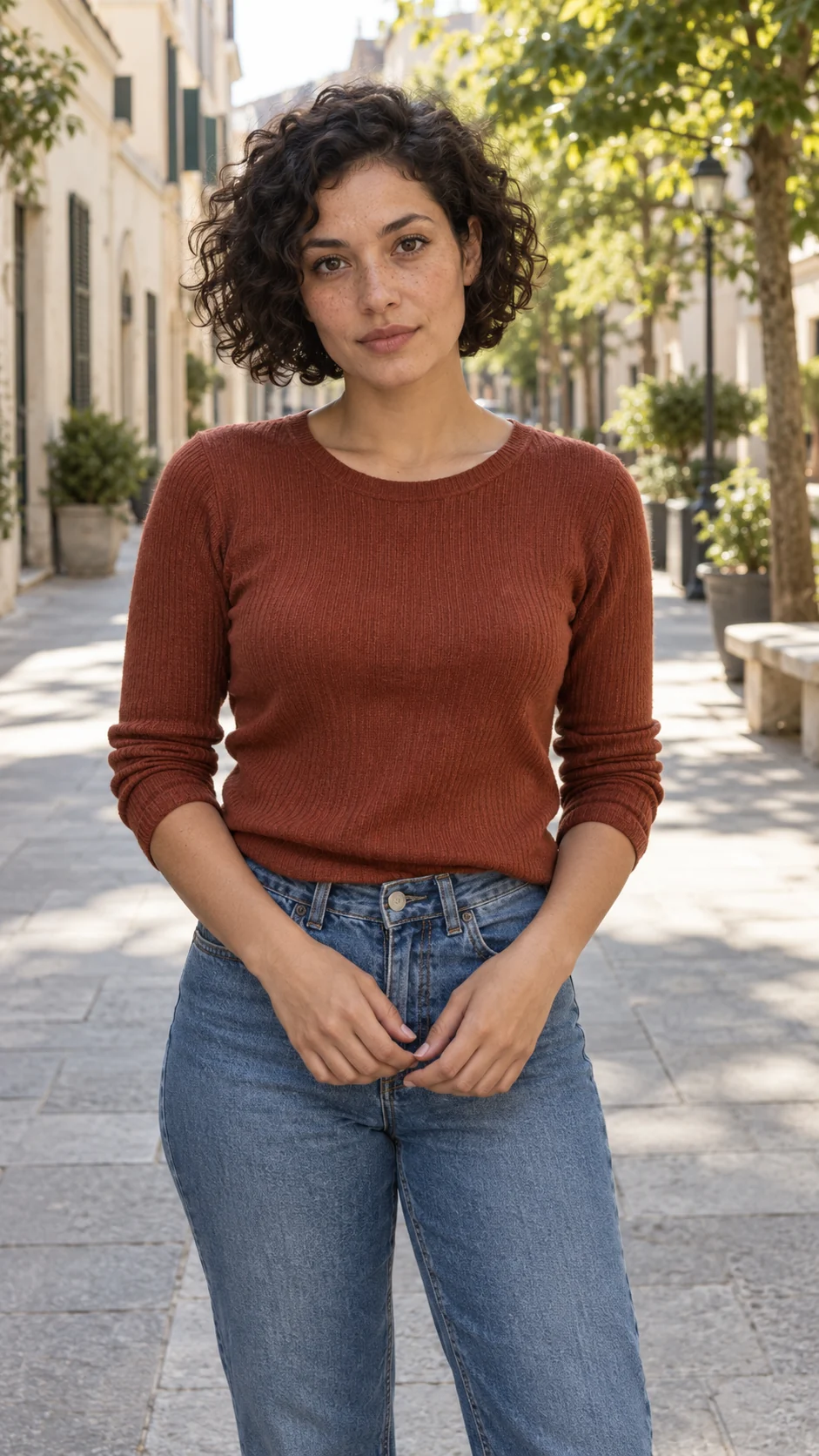
See the source photo beside its short head movement and relaxed smile.
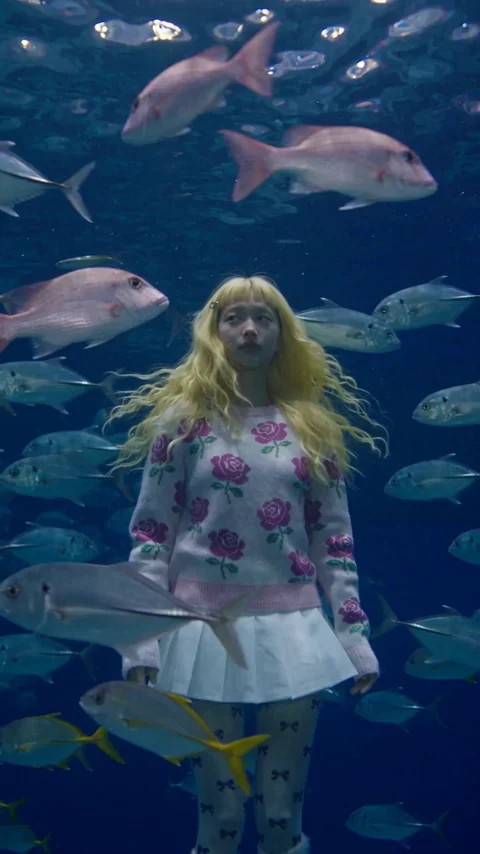
Step into a glowing underwater world.
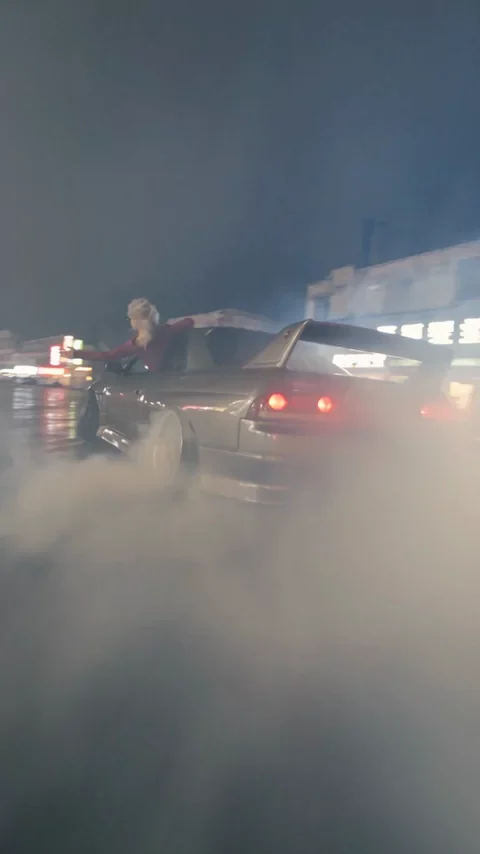
Put yourself in a cinematic night scene.
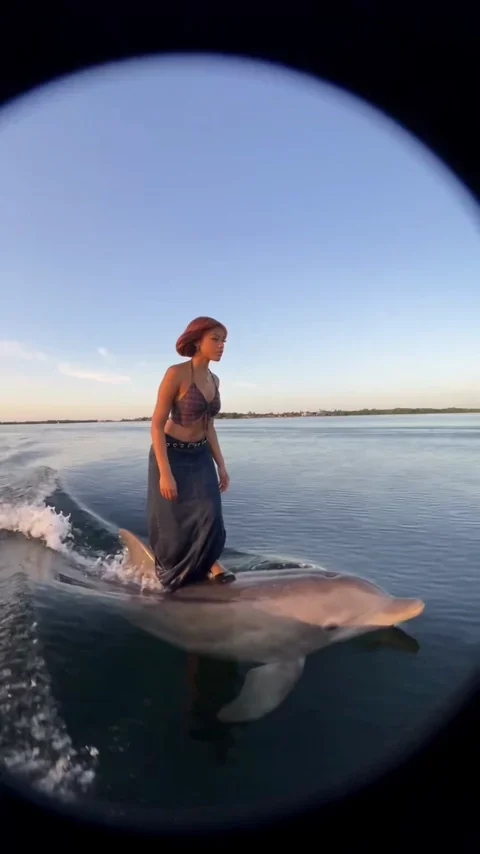
Swap an ordinary scene for a surreal escape.
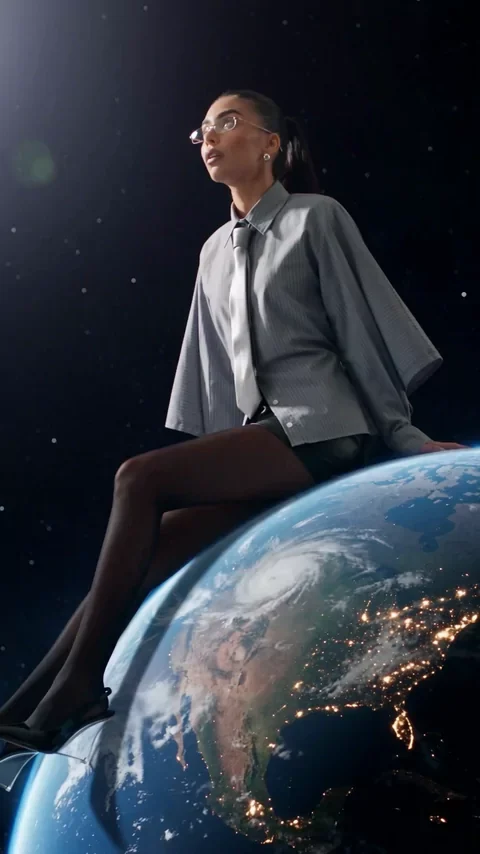
Watch the planet turn beneath your feet.
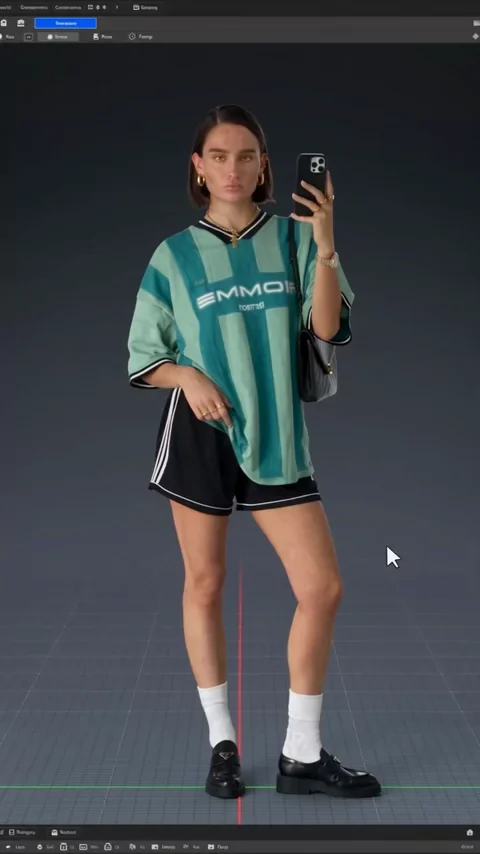
Turn a portrait into a rotating character reveal.
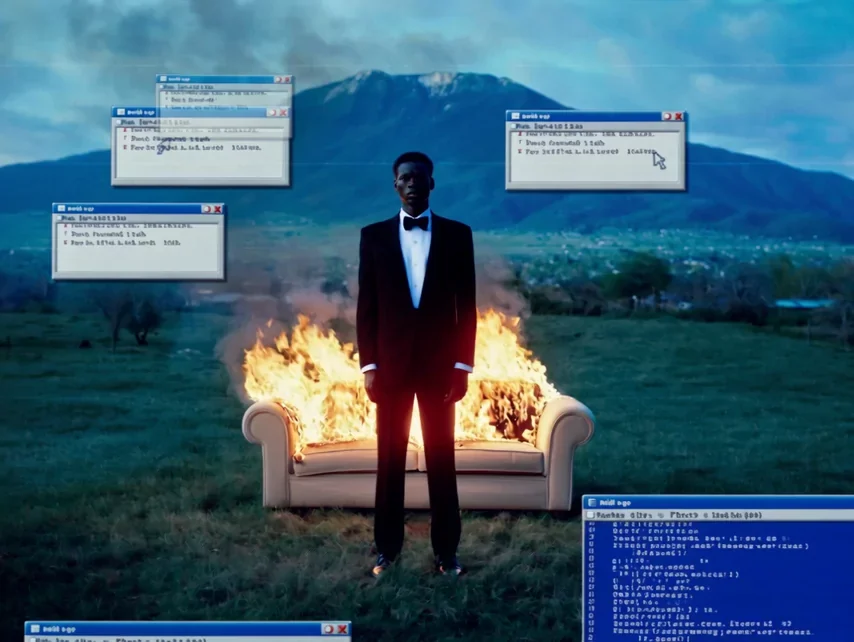
Add a surreal retro-computer twist.

A cartoon puppy bursts out of its picture.
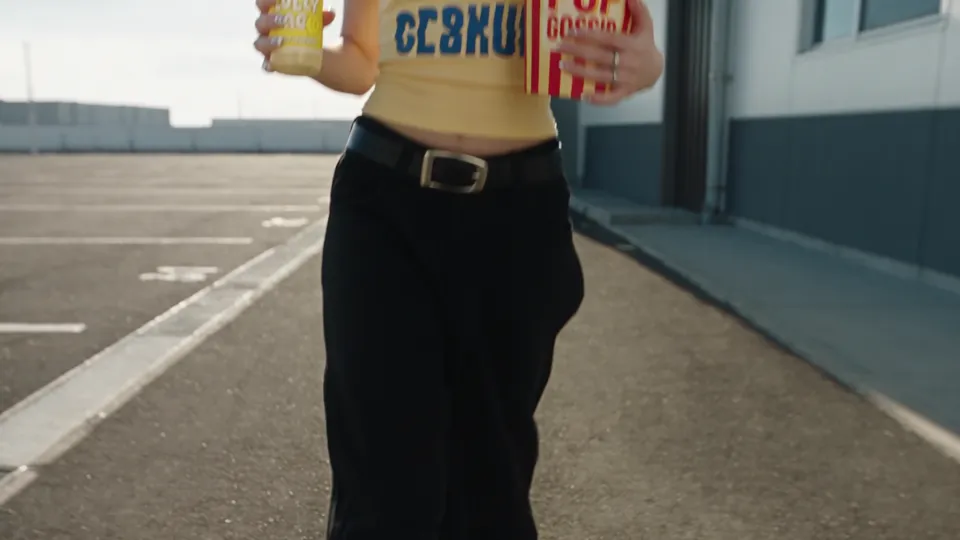
A person leans back and floats with their snack.
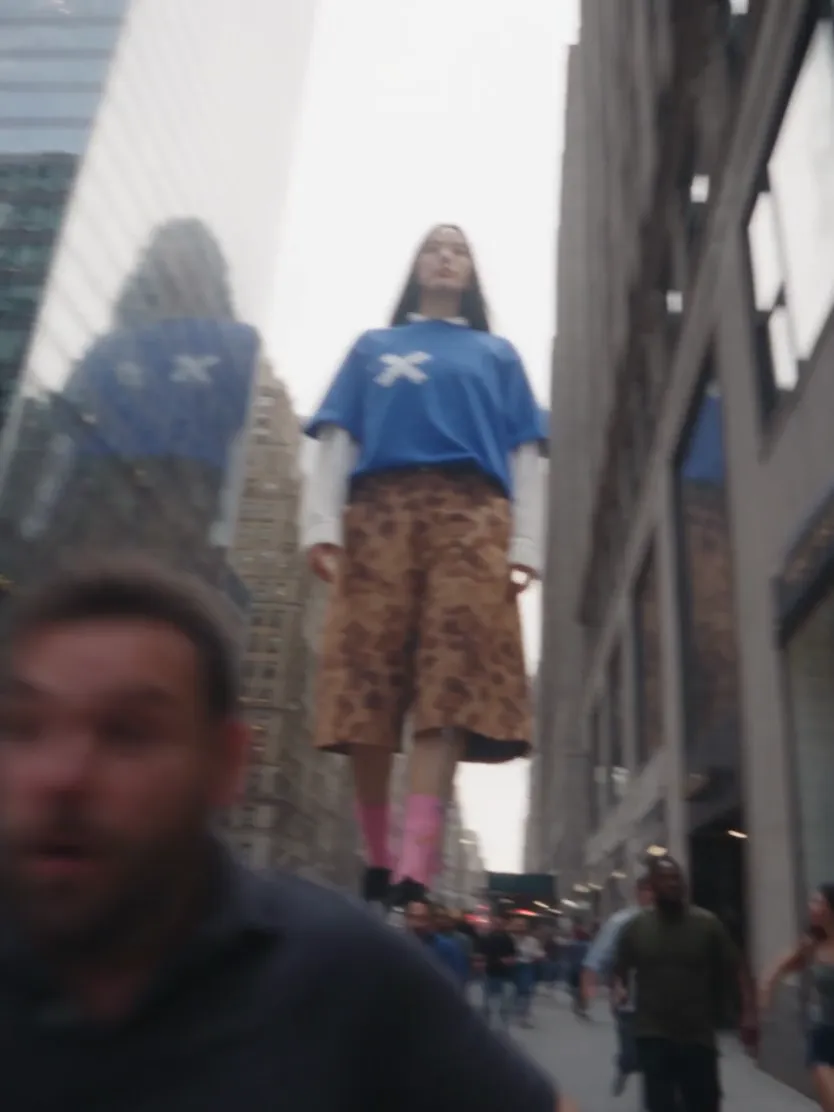
A giant towers over a busy city street.
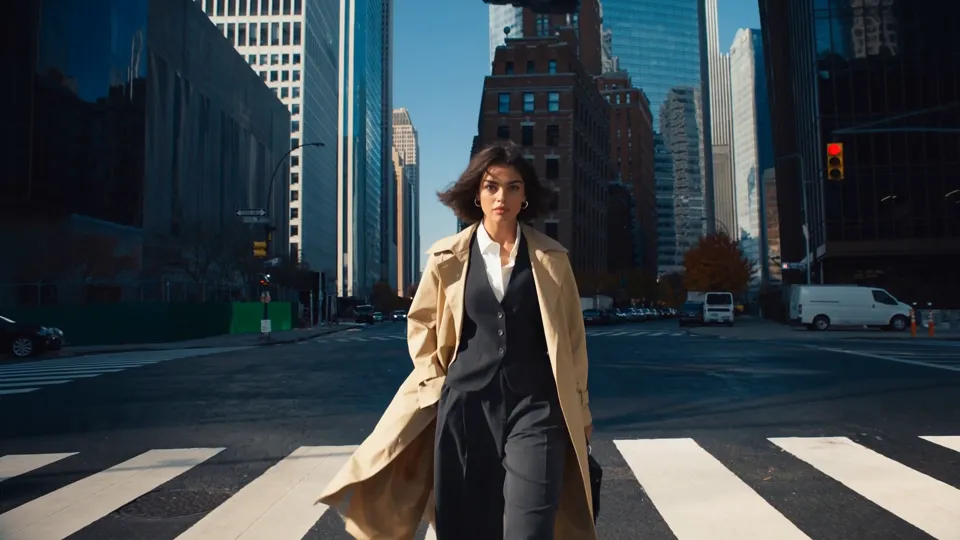
The street folds into a new world around a walker.
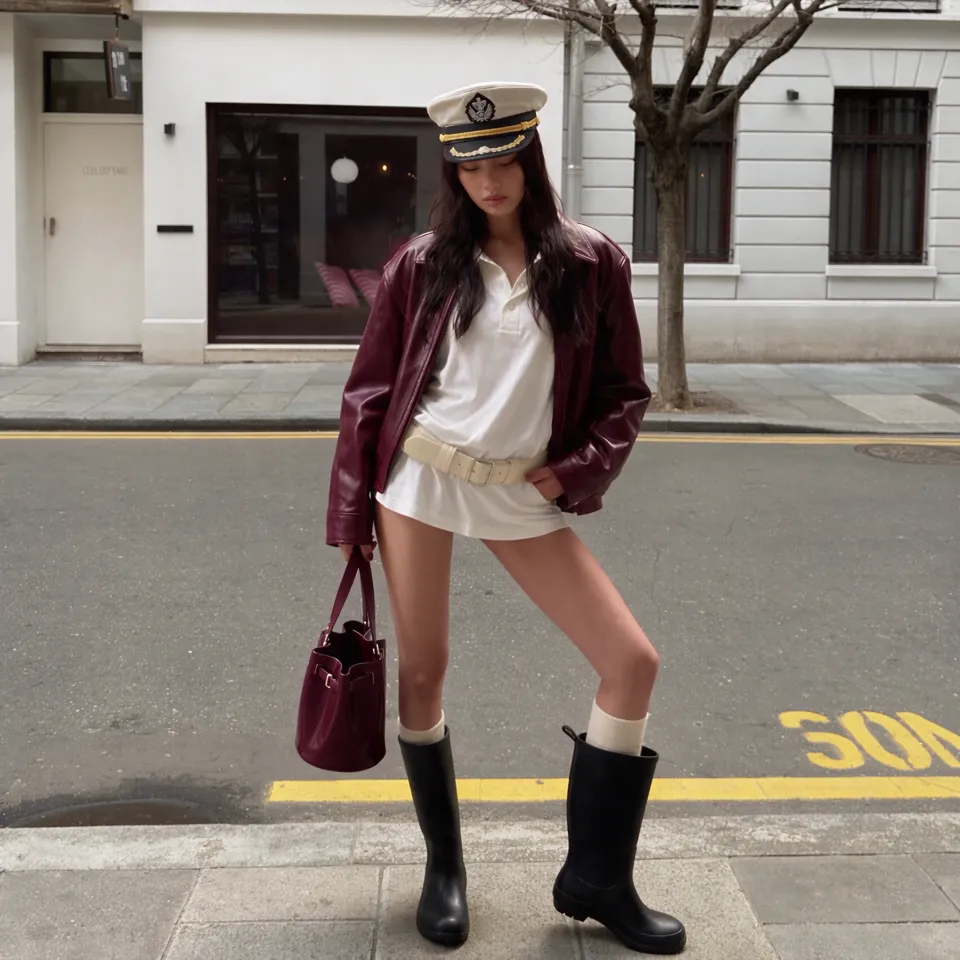
A portrait melts into liquid and vanishes.


Animate a kitchen photo with a small repeated action.
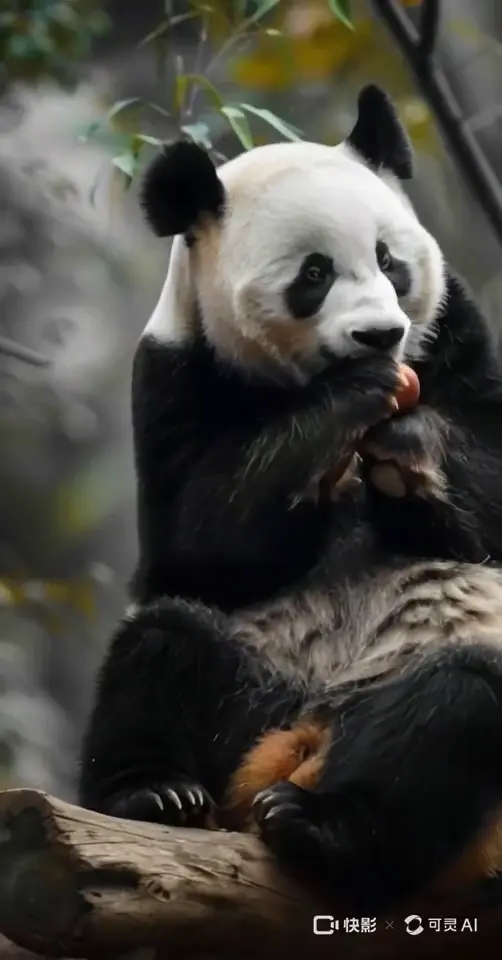
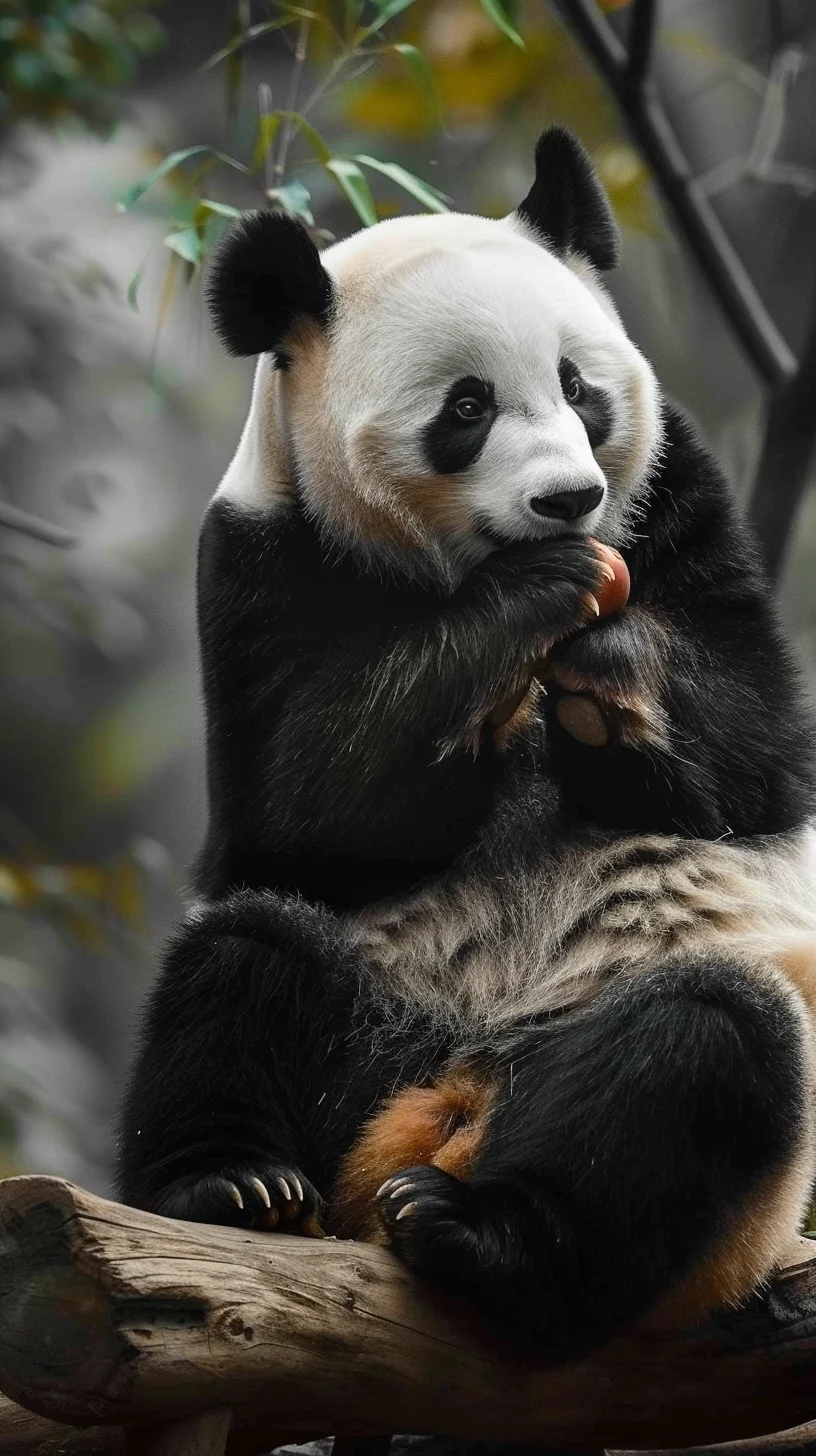
Bring a wildlife portrait to life with a simple eating motion.
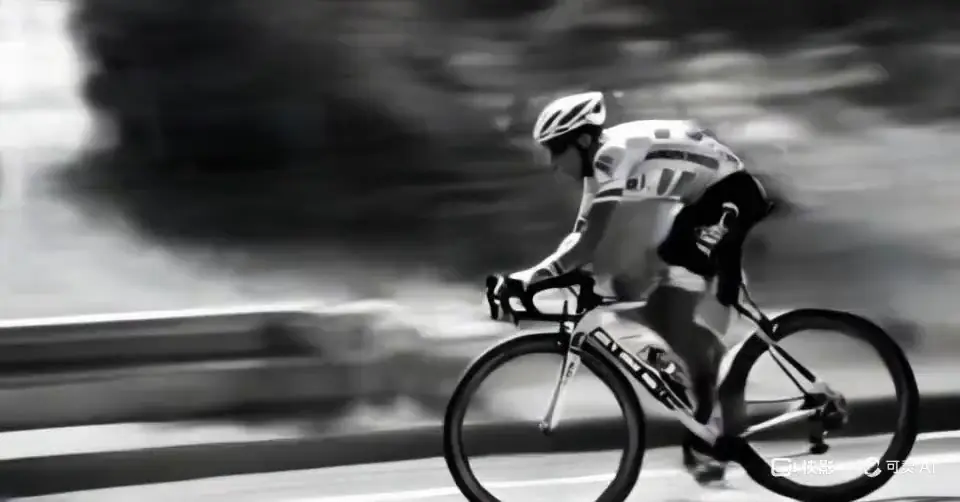
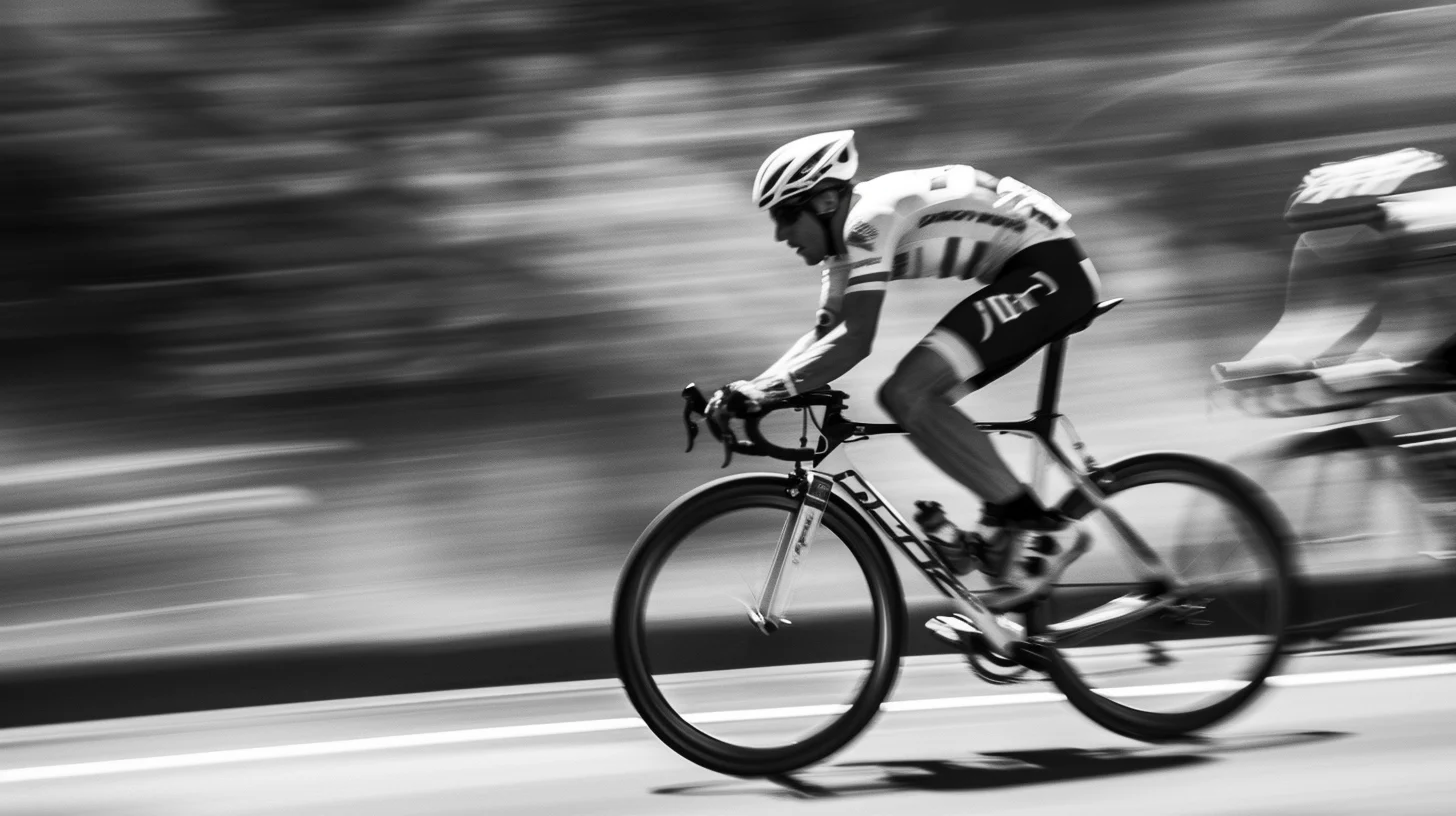
Track a cyclist as the background moves past.
Keep an image as the first frame, or use it as a reference for a different setting.
A half-body portrait gives the hand room to move. The prepared recipe directs one clear gesture.
Try Finger HeartUse one dog photo as an identity reference. The cockpit is generated; it is not the original photo background.
Try Pet PilotA shallow camera arc reveals depth behind the person. Start with a clear pose and a background with room to move.
Try Cinematic OrbitEffect first, prompt second
Watch a motion example, add your own photo and use the prepared model, prompt and settings to create your version.
A different viewpoint
A small change in viewpoint gives a still portrait depth. This SceneWish example keeps the person in place while the camera arcs to reveal more of the surroundings, a camera move you can reuse in your own image to video clip.
Three ways to use your image
Reference images belong to a separate workflow: they define a subject for a new scene. This recorded pet example uses reference to video, rather than this page’s single starting frame.
Use image to video to turn a still you care about into a short clip you can watch, refine and keep.
Upload one clear portrait, illustration or scene, or select a saved image. This photo becomes the opening frame of your clip.
Tell the model what should move and how the camera should behave. Choose the supported format and duration, then review the credit quote.
Play the finished clip and check the subject and motion. Download it for your edit, or find it again in My Assets.
Use a preset for a specific effect, or describe a scene without a starting photo.
SceneWish template example
Watch a demonstrated template and use its preset with your own photo.
Browse templates
SceneWish text-to-video example
Describe a character, place and action when you want to invent the whole shot.
Open Text to Video
Guide the start and end of a transition with two images.
Open toolBring reference subjects into a new scene.
Open toolEvery image to video clip is quoted in credits before you start. Choose a monthly plan, annual credits or a one-time pack that fits how often you animate photos.
Starter
500 credits
For occasional short videos
Pro
1,000 credits
For regular video creation
Max
2,000 credits
For higher video volume
Starter
4,800 credits
For occasional short videos
Pro
9,600 credits
For regular video creation
Max
20,000 credits
For higher video volume
500 credit pack
500 credits
One-time payment. No subscription required.
1,000 credit pack
1,000 credits
One-time payment. No subscription required.
2,500 credit pack
2,500 credits
One-time payment. No subscription required.
Choose suitable inputs and know what to expect from your clip.
From still to moving
Choose a clear image, describe what changes and let SceneWish turn your image to video idea into a clip you can review before sharing.
Start your image to video clipSceneWish-generated video example.