
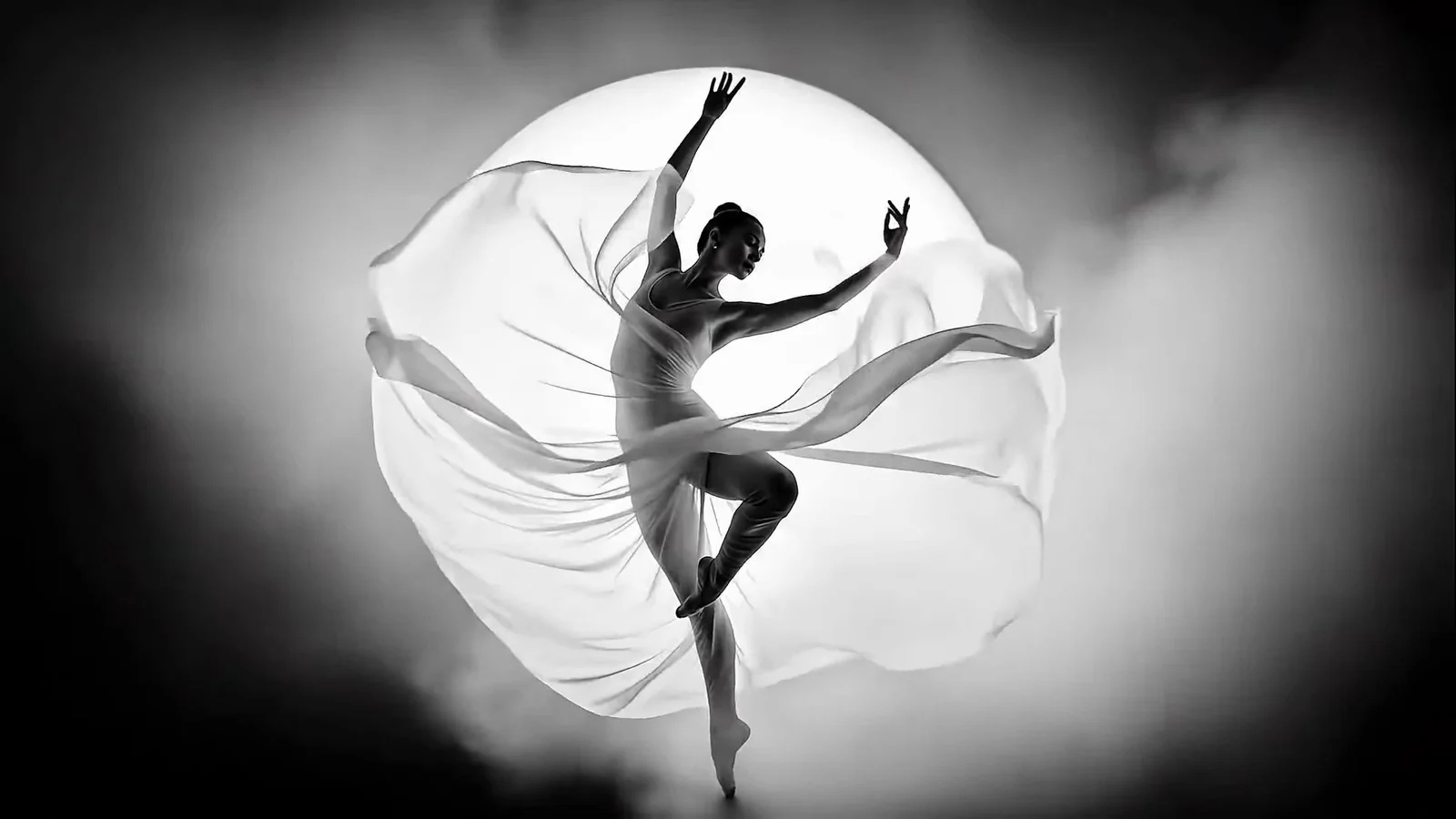
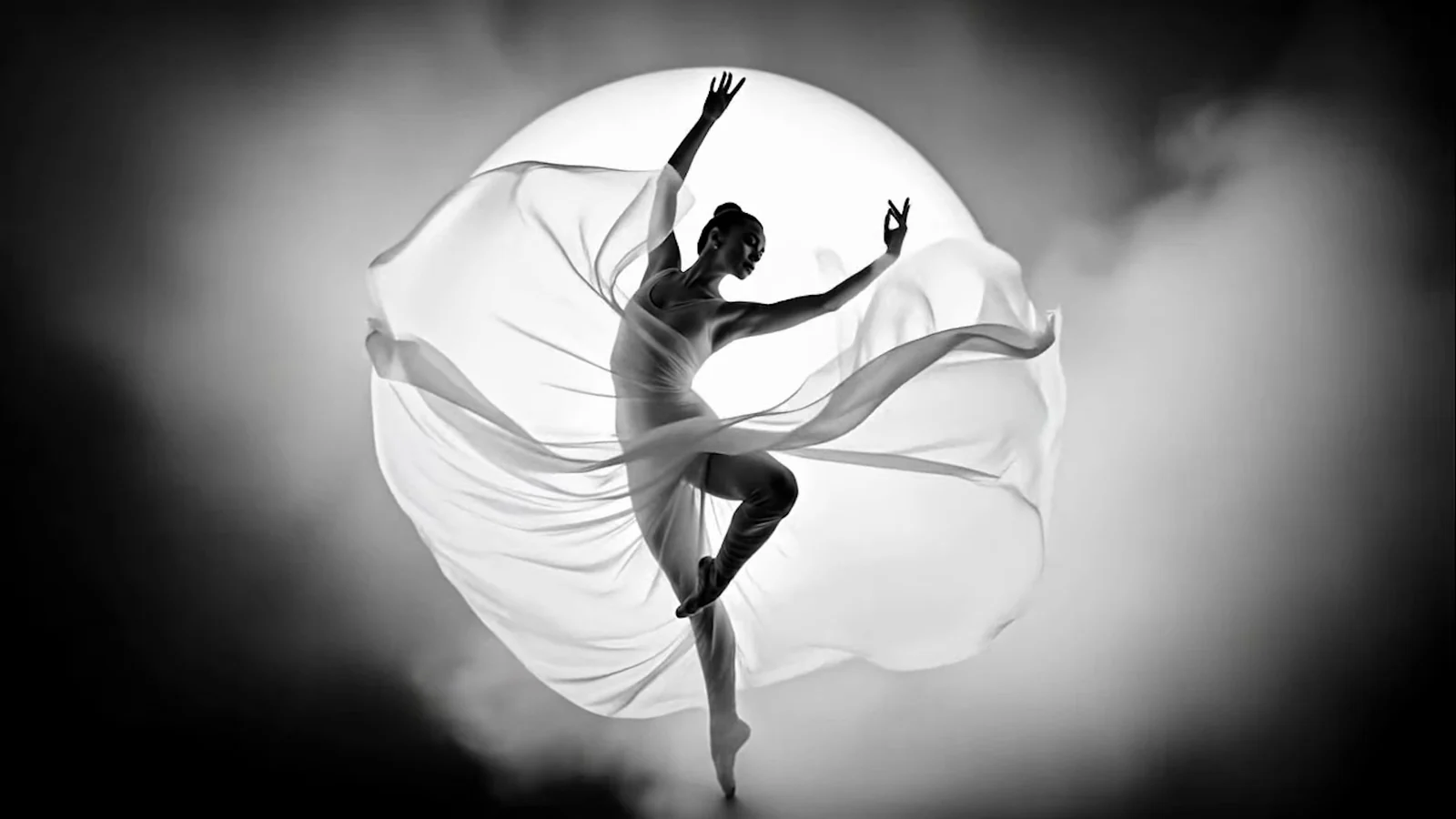
From a solo dancer to a group
Google’s official multi-step extension example continues the stage scene as more dancers join.
Continue a clip with AI. Upload a video, or pick a finished SceneWish video on models that extend their own results, then describe what happens next.
This model continues a video you upload. Add a clip within the length range shown for the model.
Choose a source video and describe what happens next.
Compare an original clip with its continued scene. External demonstrations may combine several extensions.
Google’s official multi-step extension example continues the stage scene as more dancers join.


The official Kling example carries the portrait forward into a hand reaching toward the hat brim.


An official combined extension demo develops a surreal transformation.


A box of potatoes gradually becomes a crowd of puppies.
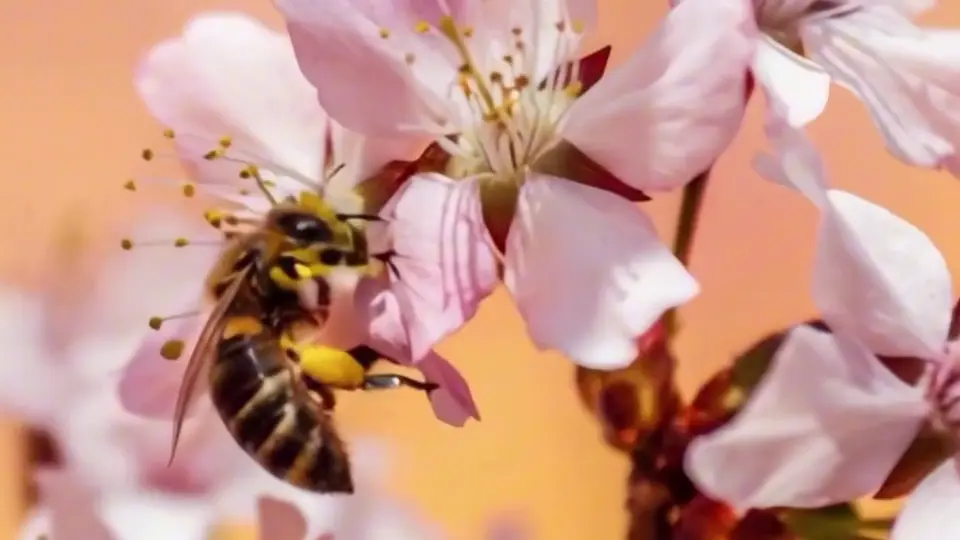

An extended macro scene follows the insect’s movement.


The next continuation carries the hat gesture into a distant gaze.
Extension models fall into two groups. Some continue a video you upload; others only continue a finished video made with the same model on SceneWish.
ByteDance
Alibaba
Skywork
Black Forest Labs
PixVerse
Decide first whether you are uploading a clip or continuing a SceneWish video, because the model decides which one you can use.
Three steps
Seedance 2.5, Wan 2.7, FLUX 3 Video and SkyReels V4 take an uploaded video. Veo 3.1, PixVerse V6 and Gemini Omni continue a finished video from your SceneWish tasks.
Upload a clip within the model's range, or choose a finished task. Then write the next action. Keep the same subject, setting and style unless you want them to change.
Pick the length the model offers, check the credit cost beside Generate and submit. The extended video plays under the generator.
Make a clip to extend, or change one you already have.

Example from the linked tool page.
Generate a first shot from a written scene.
Open Text to Video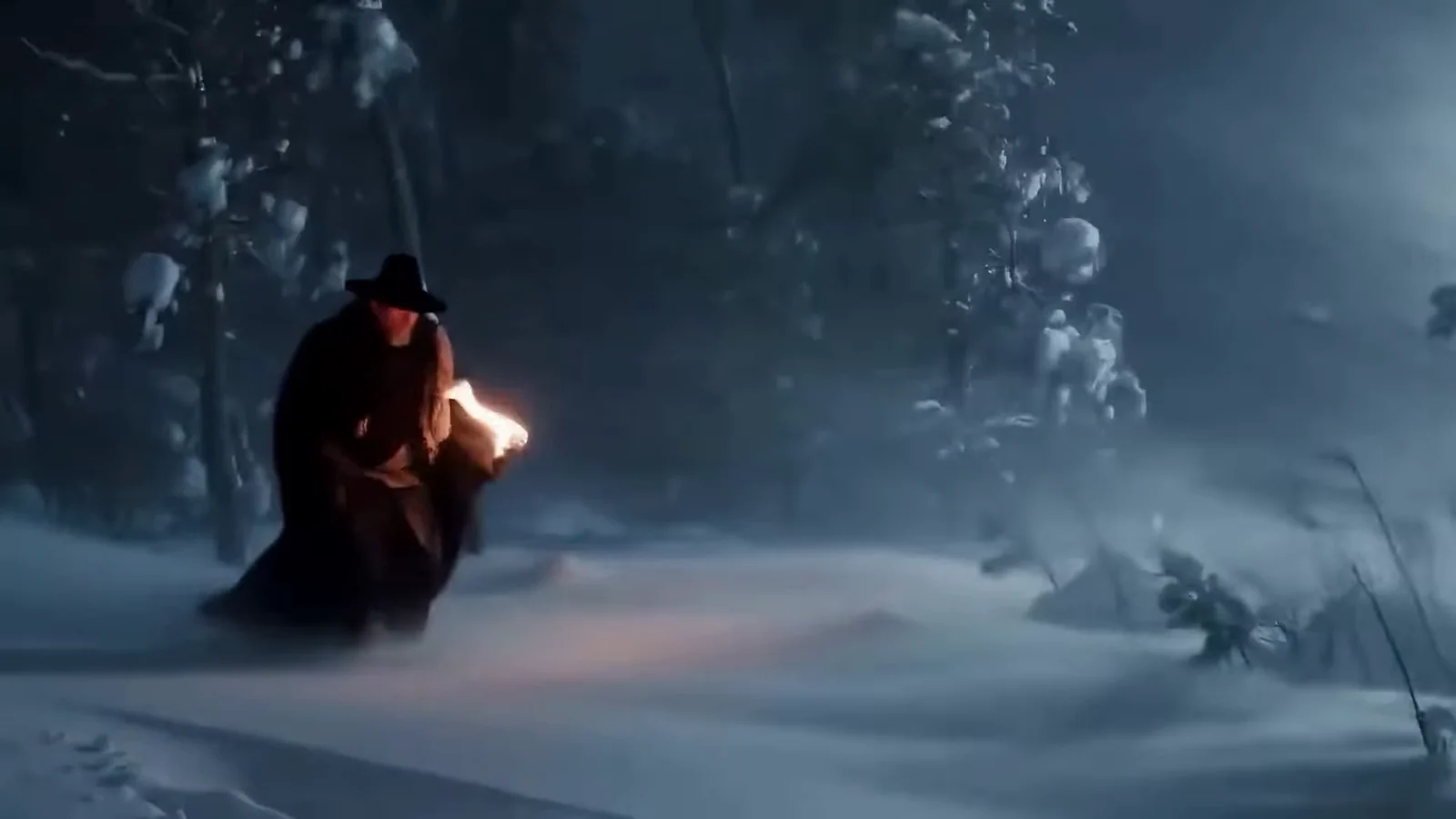
Example from the linked tool page.
Change the look or setting of an existing video.
Open Video to Video
Example from the linked tool page.
Turn a finished draft or MiniMax H3 video into a final render.
Open Refine VideoCost follows the model, the length you choose and, on upload models, the length of your source clip. The quote appears before you generate, so you can compare an upload model with a finished-task model.
Starter
500 credits
For occasional short videos
Pro
1,000 credits
For regular video creation
Max
2,000 credits
For higher video volume
Starter
4,800 credits
For occasional short videos
Pro
9,600 credits
For regular video creation
Max
20,000 credits
For higher video volume
500 credit pack
500 credits
One-time payment. No subscription required.
1,000 credit pack
1,000 credits
One-time payment. No subscription required.
2,500 credit pack
2,500 credits
One-time payment. No subscription required.
Upload versus finished task, length limits and what to expect.
The shot does not have to end
Choose a source, describe the next few seconds and watch the extension before you download it.
Extend a videoSelected examples from this tool page. External clips retain their original source; results vary with model and input.