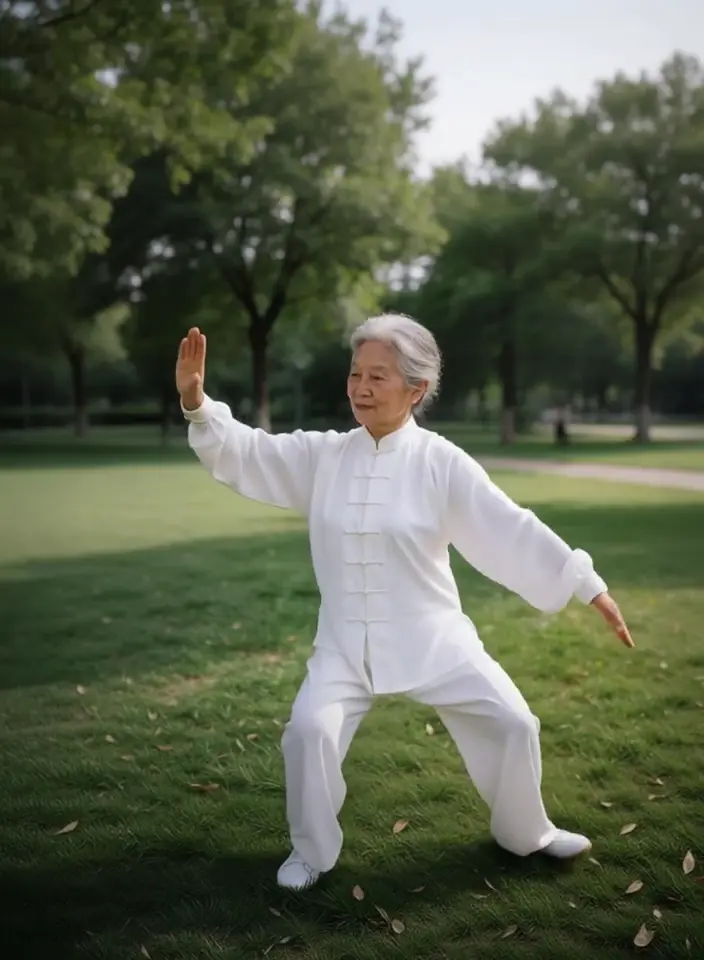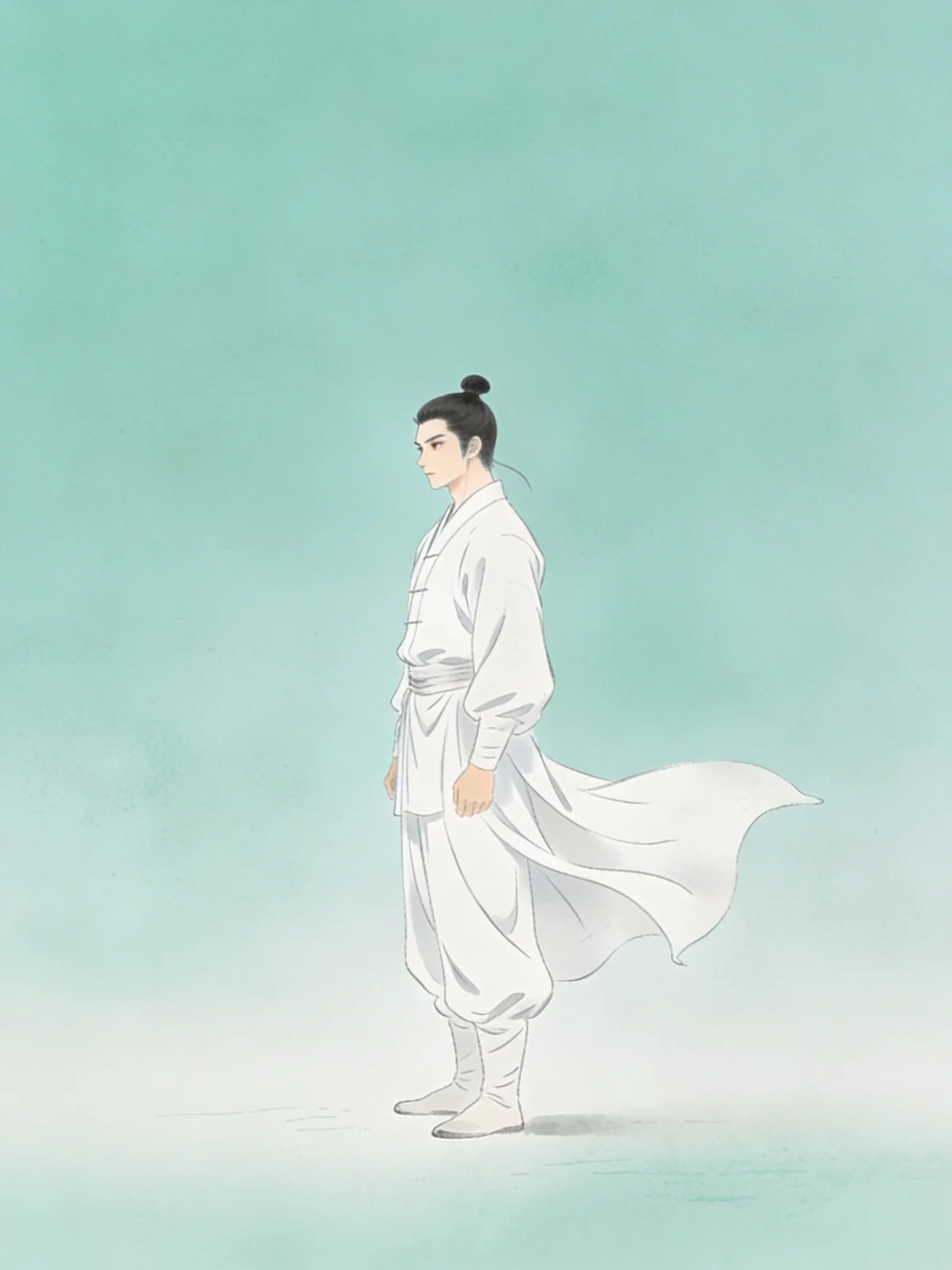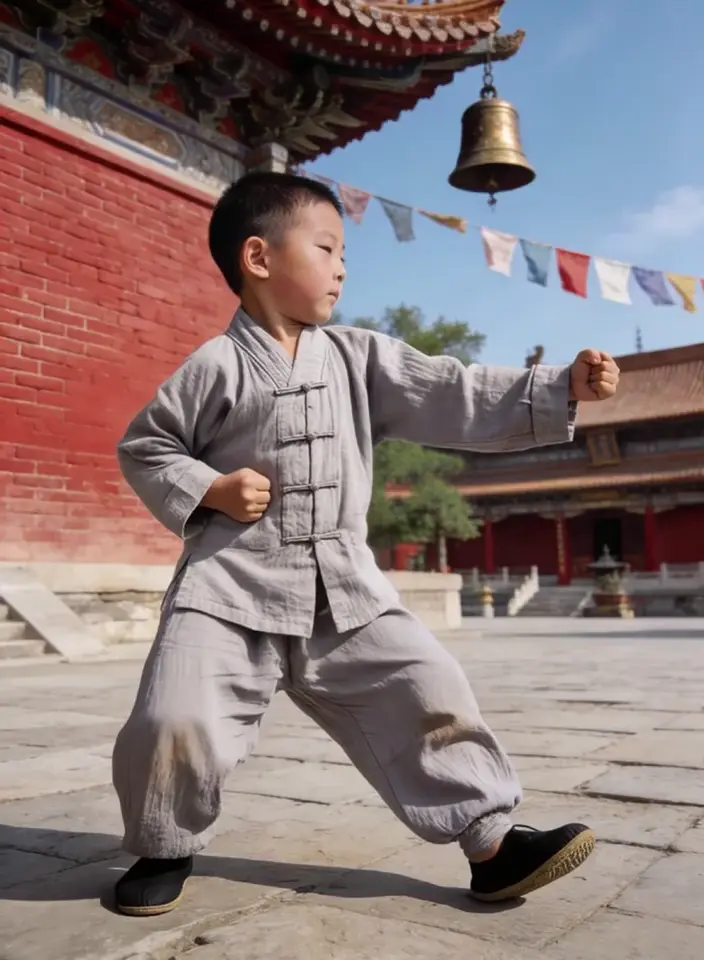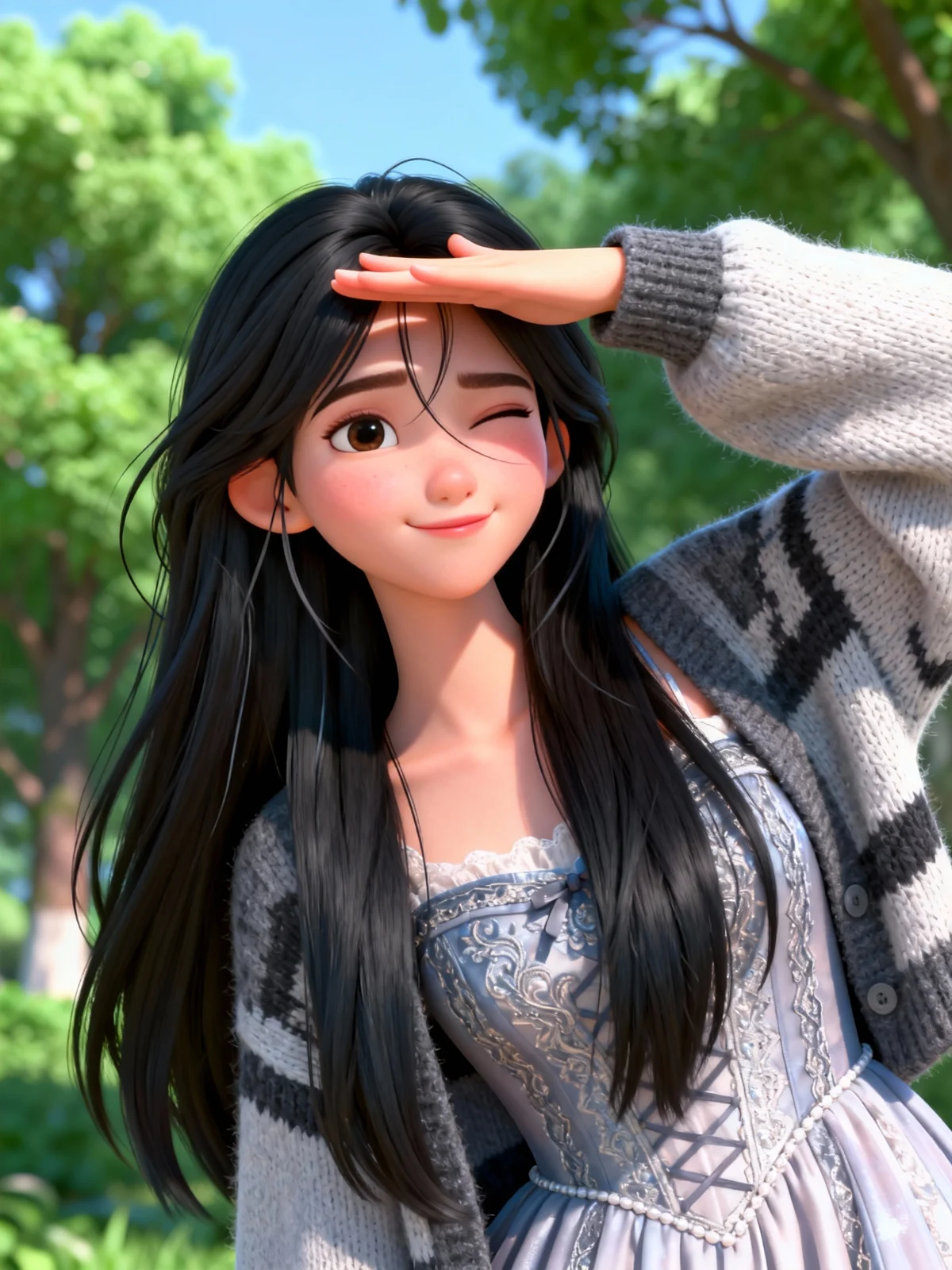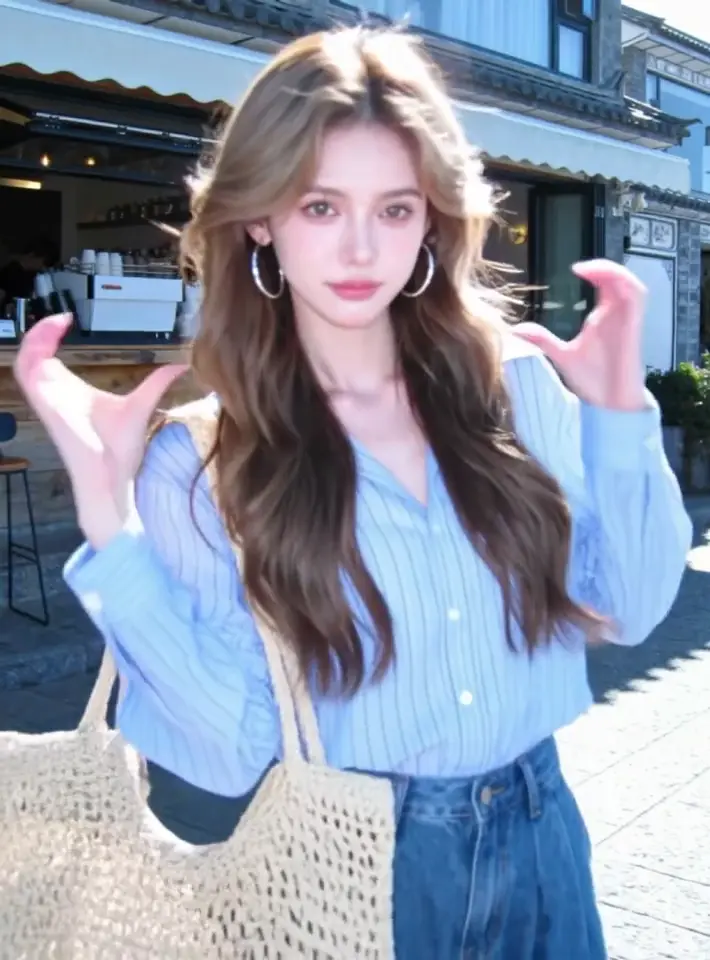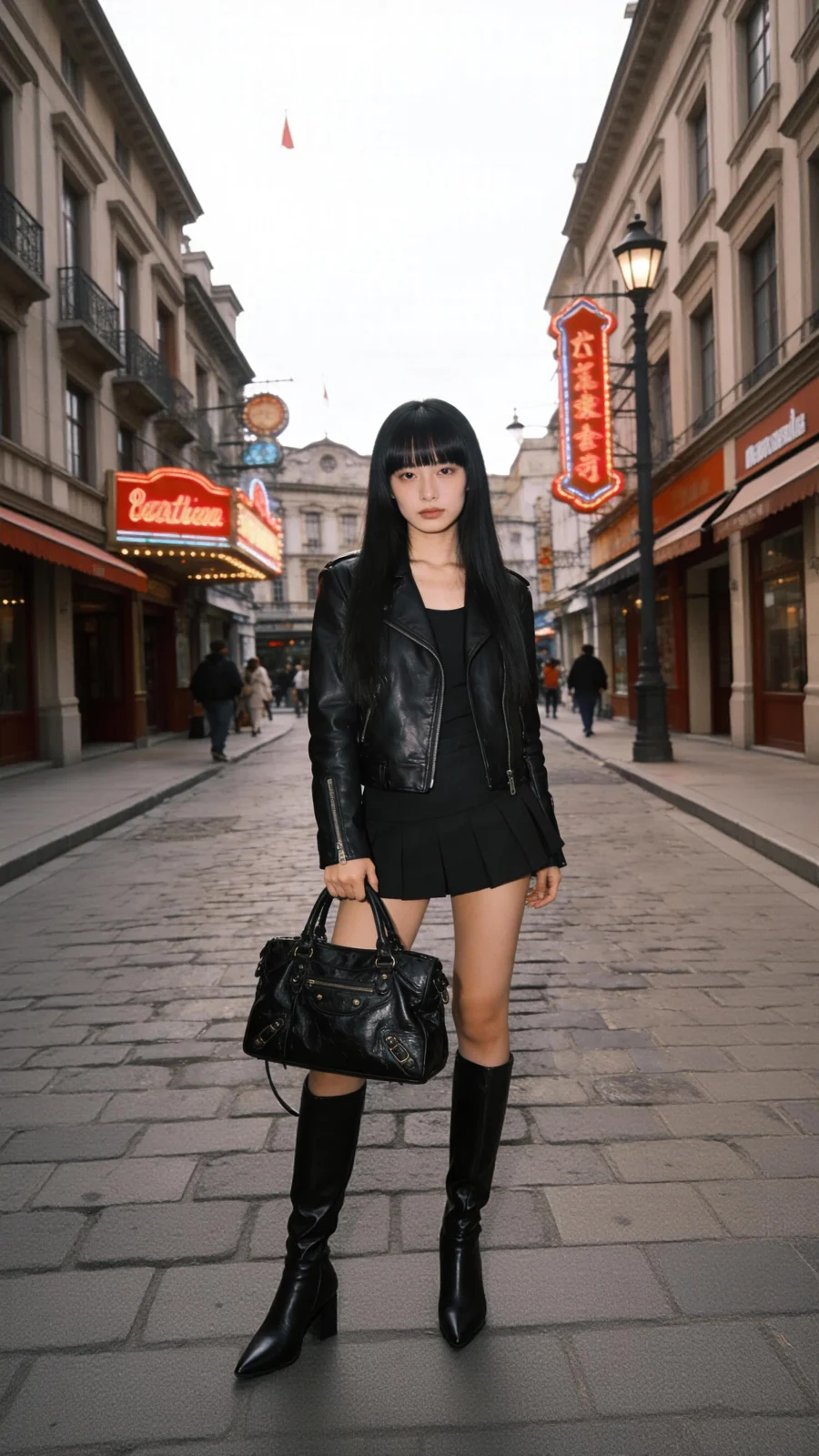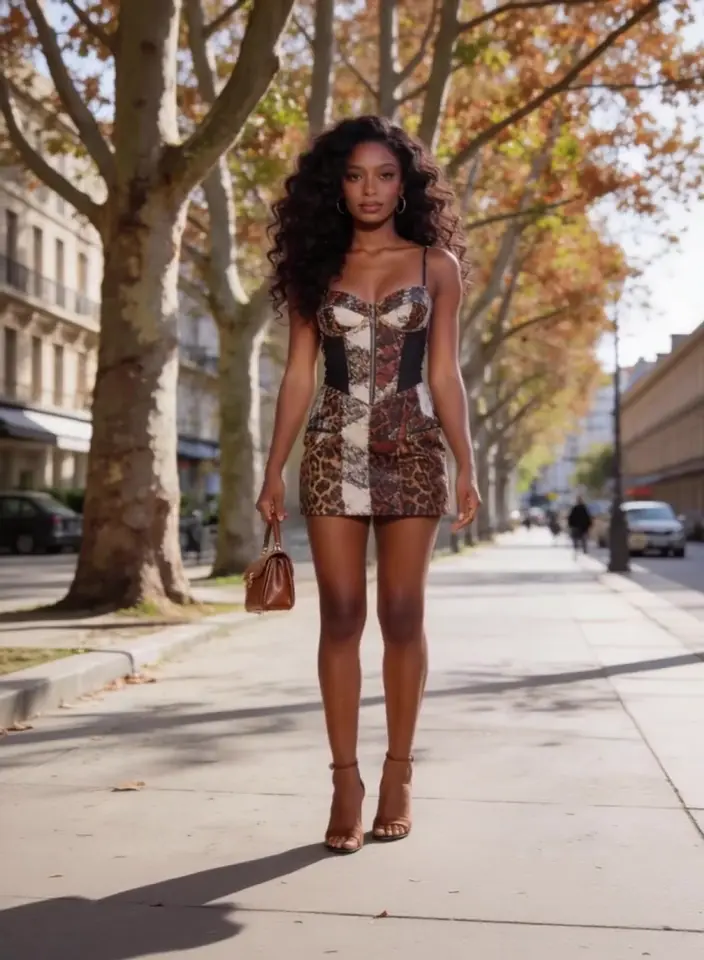
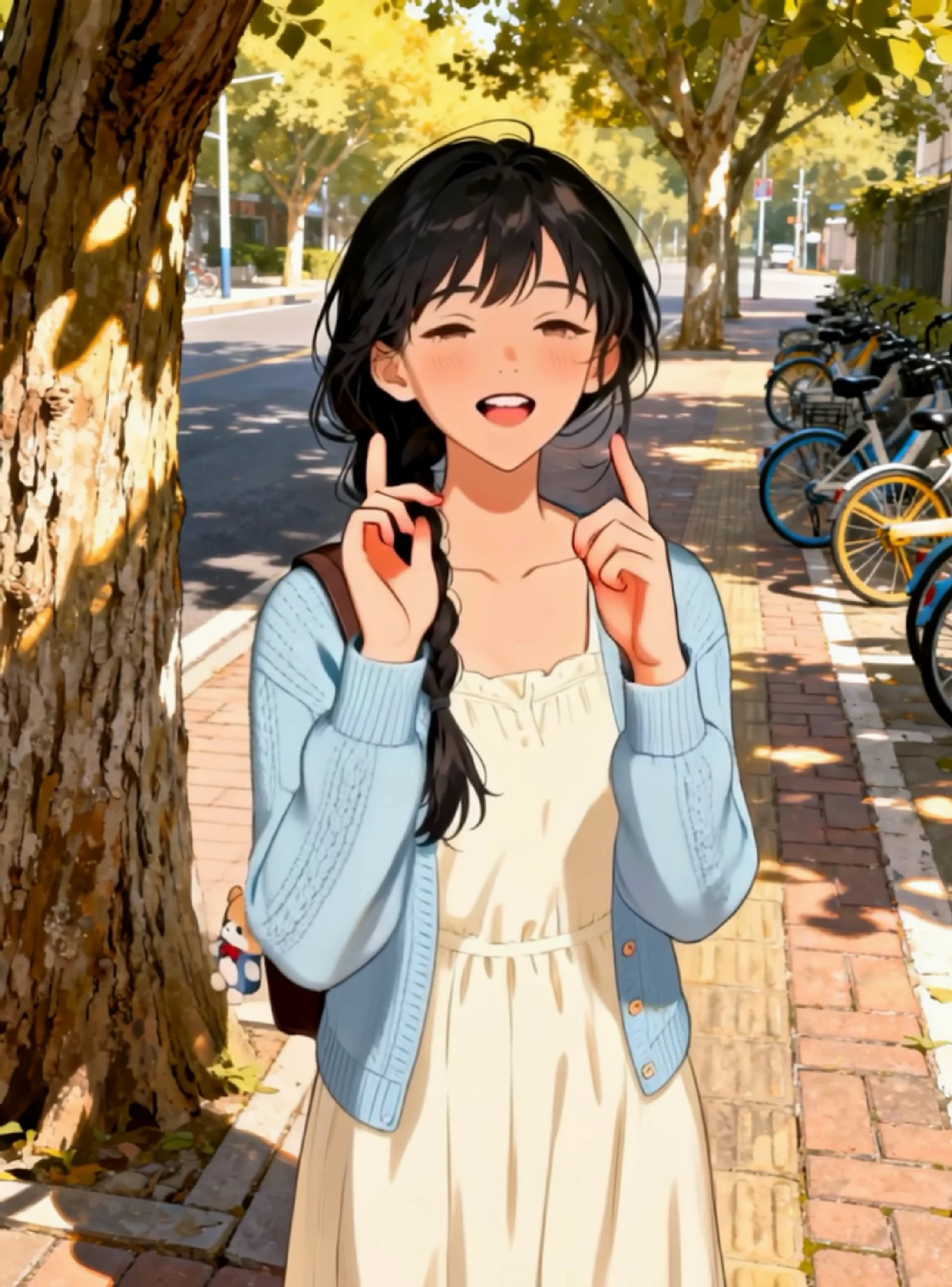
Hand gestures for a stylized character
An official Kling 2.6 example transfers a real performer’s visible hand movements to an illustrated character.
Upload a subject image and a motion video. SceneWish generates a video in which your subject follows the movement from the reference clip.
Upload one motion video of 3–30 seconds. Follow orientation from starts on Image, which limits the video to 10 seconds; set it to Video to use up to 30 seconds.
Add a subject image and a motion video.
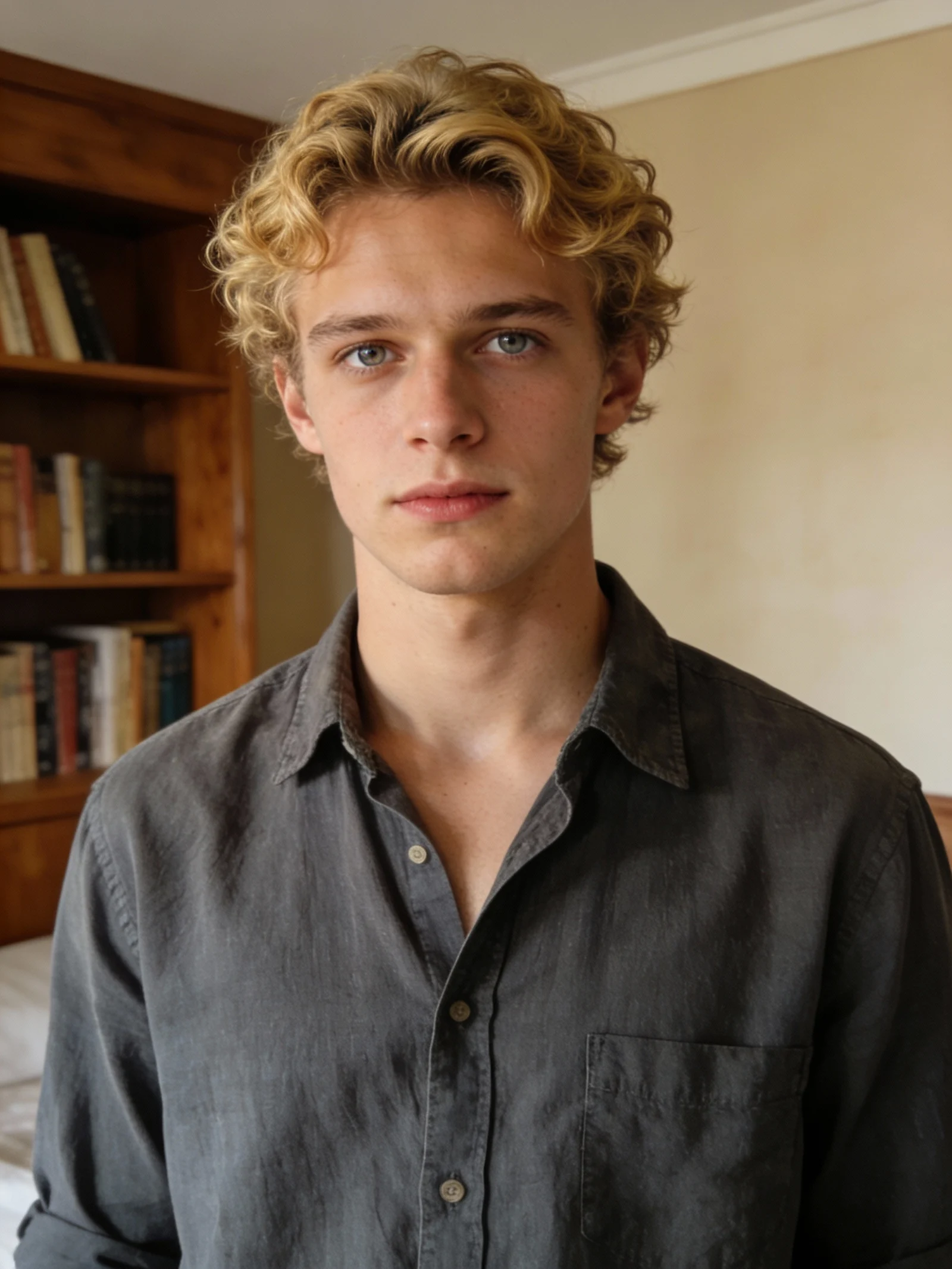
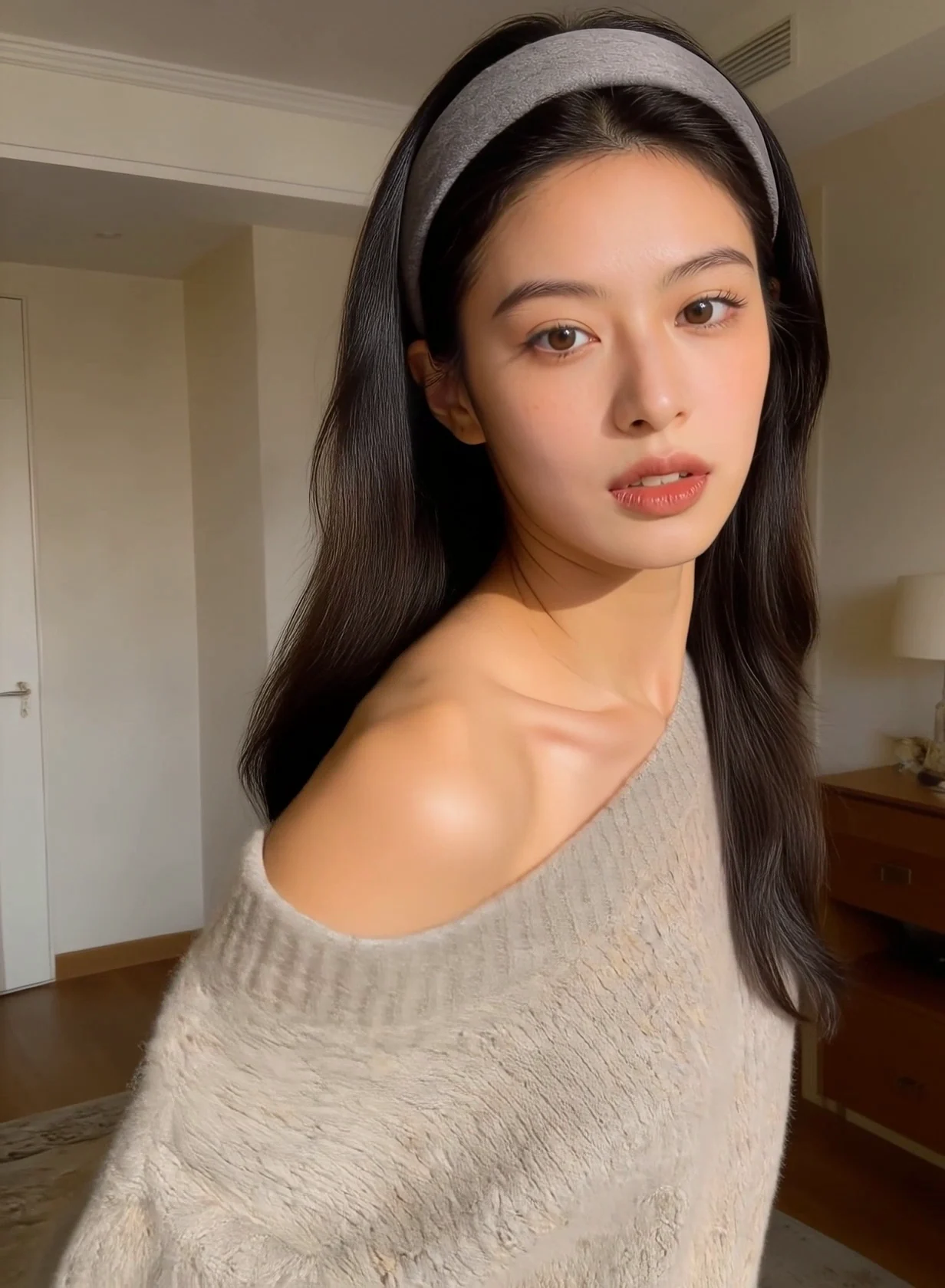
Compare the subject image, action reference and resulting performance. Each external example comes from Kling’s official guide.
An official Kling 2.6 example transfers a real performer’s visible hand movements to an illustrated character.
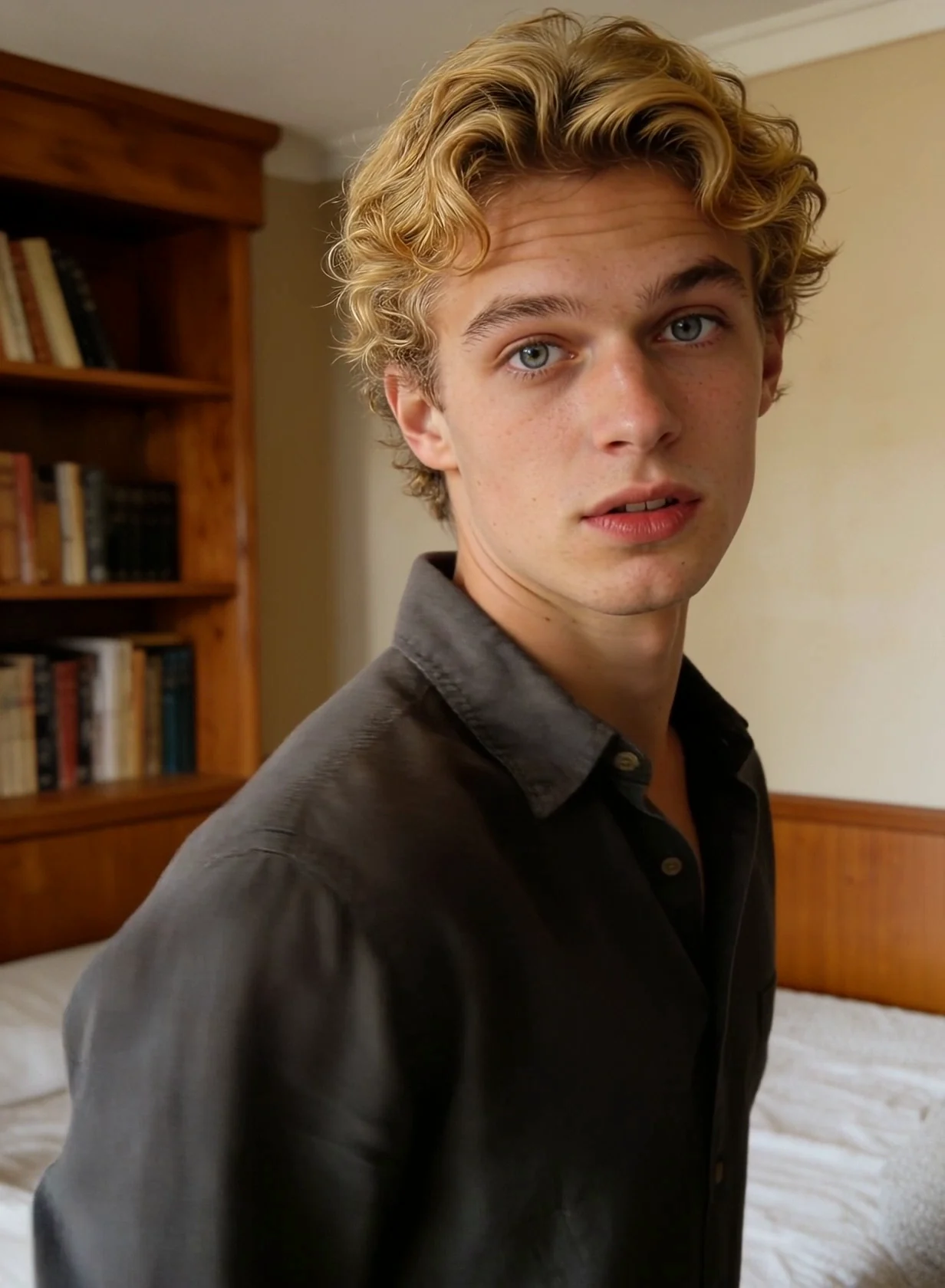
The target portrait follows the source performer’s hand movement, head tilt and changing expression.
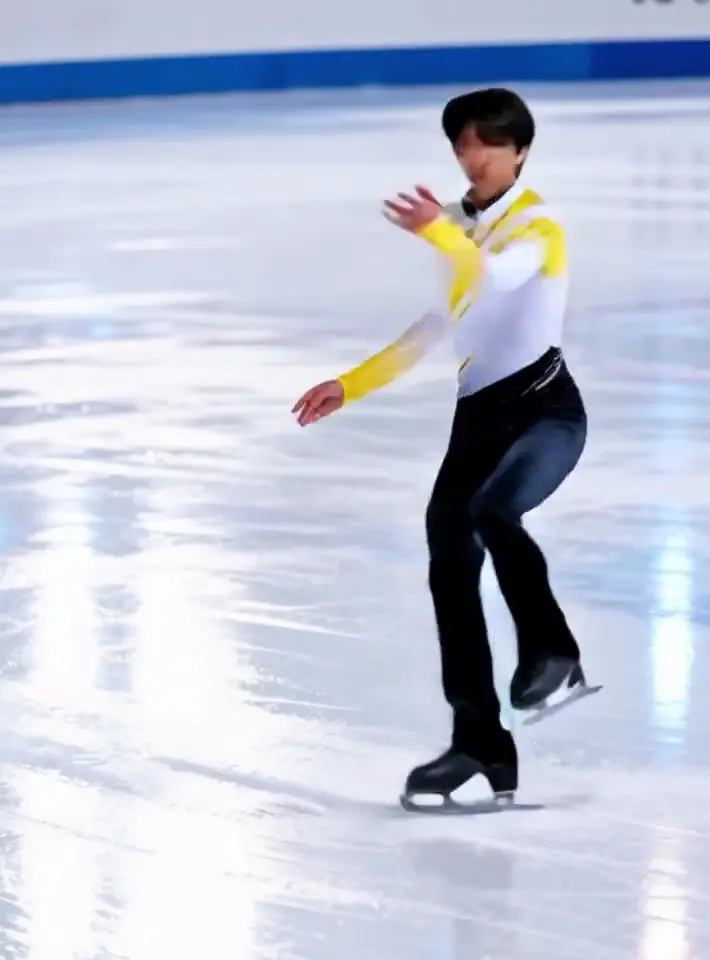
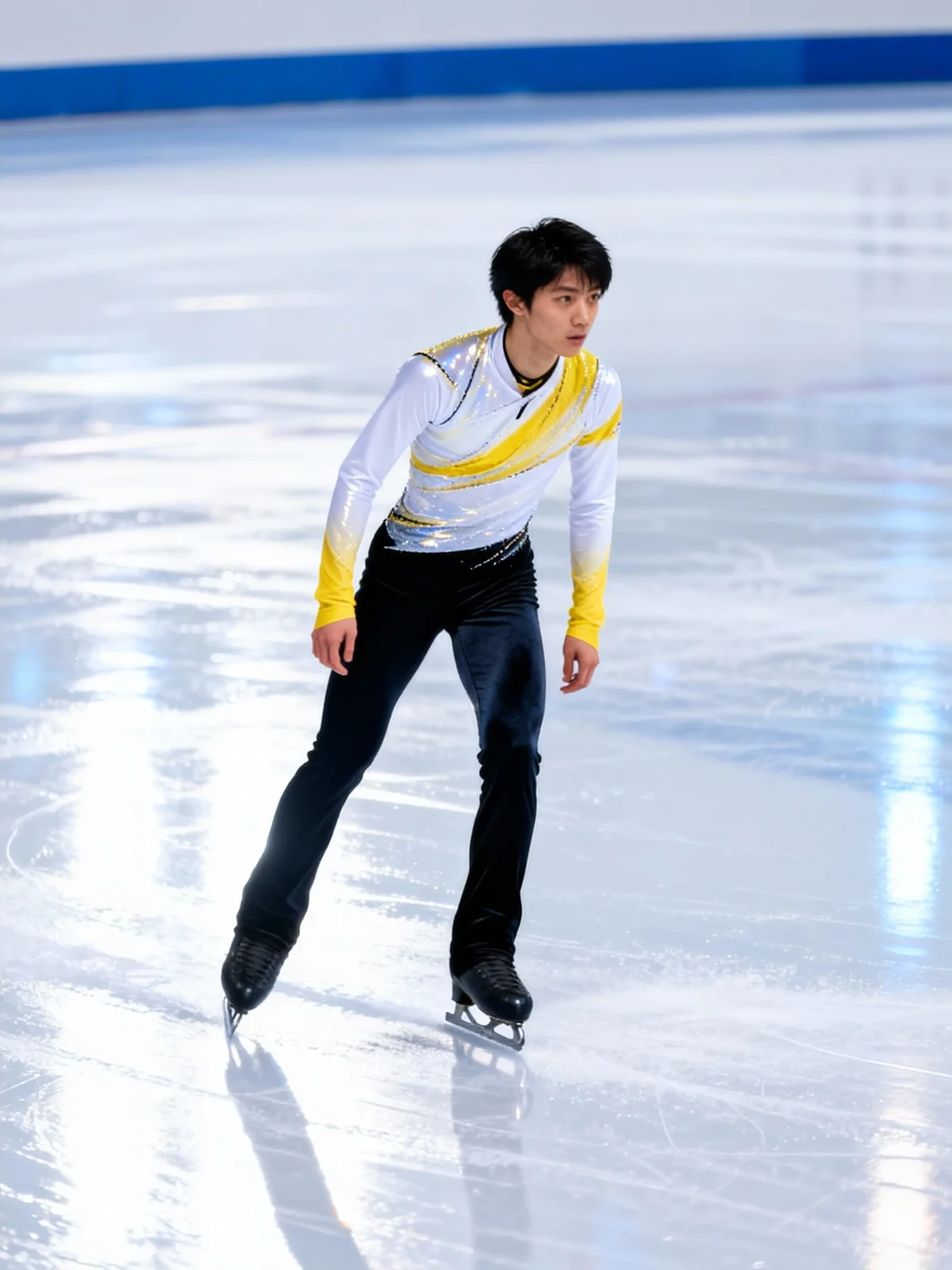
Transfer a skater’s full-body movement to the subject image.
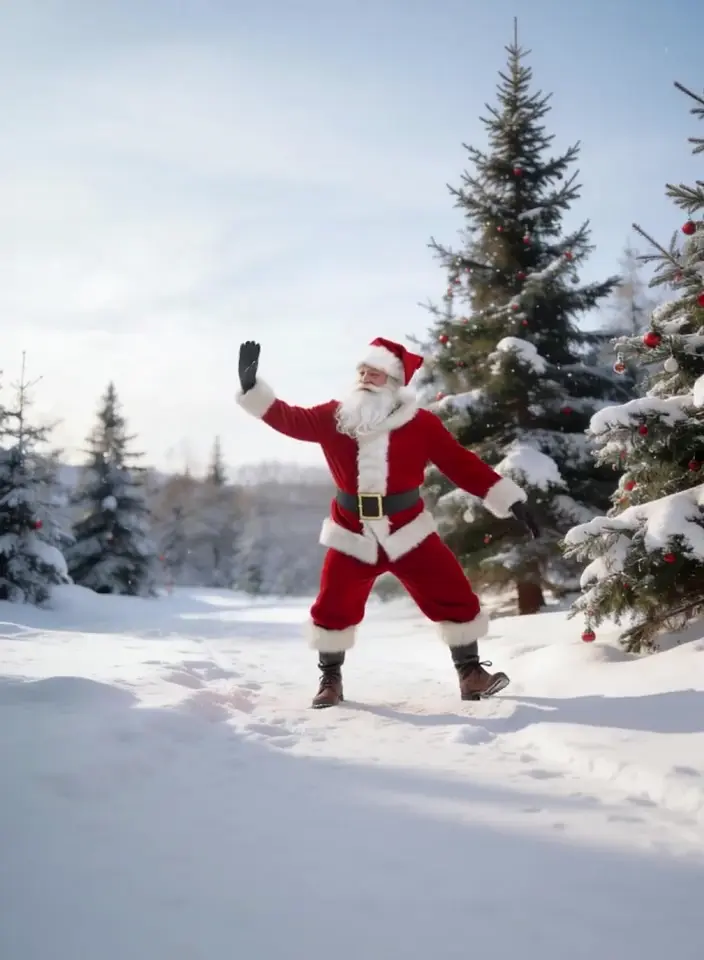
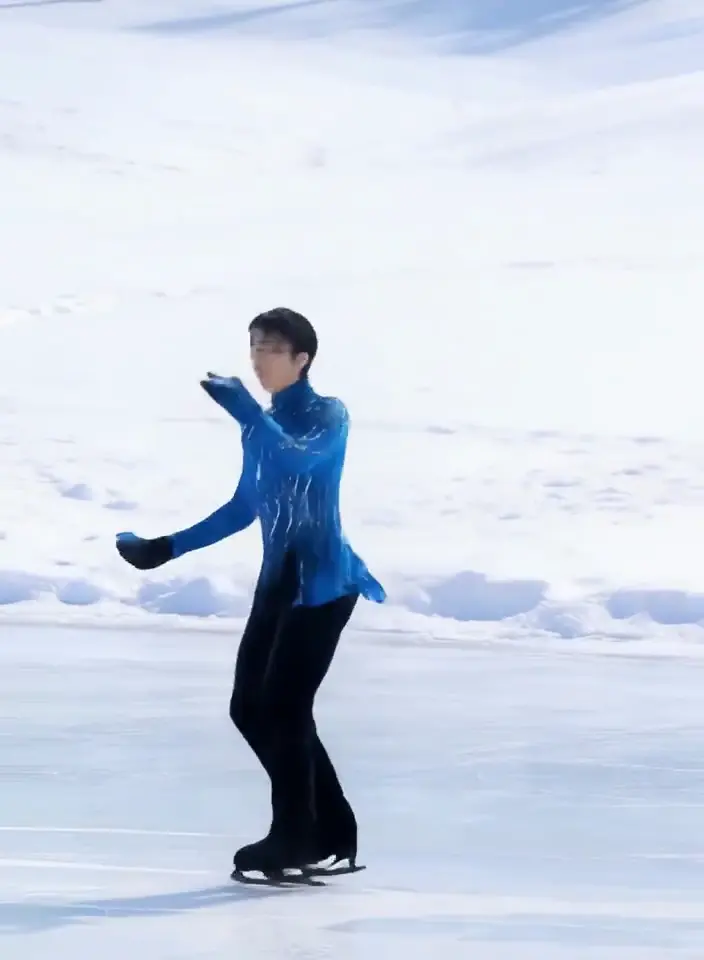
A longer dance performance in a snowy setting.
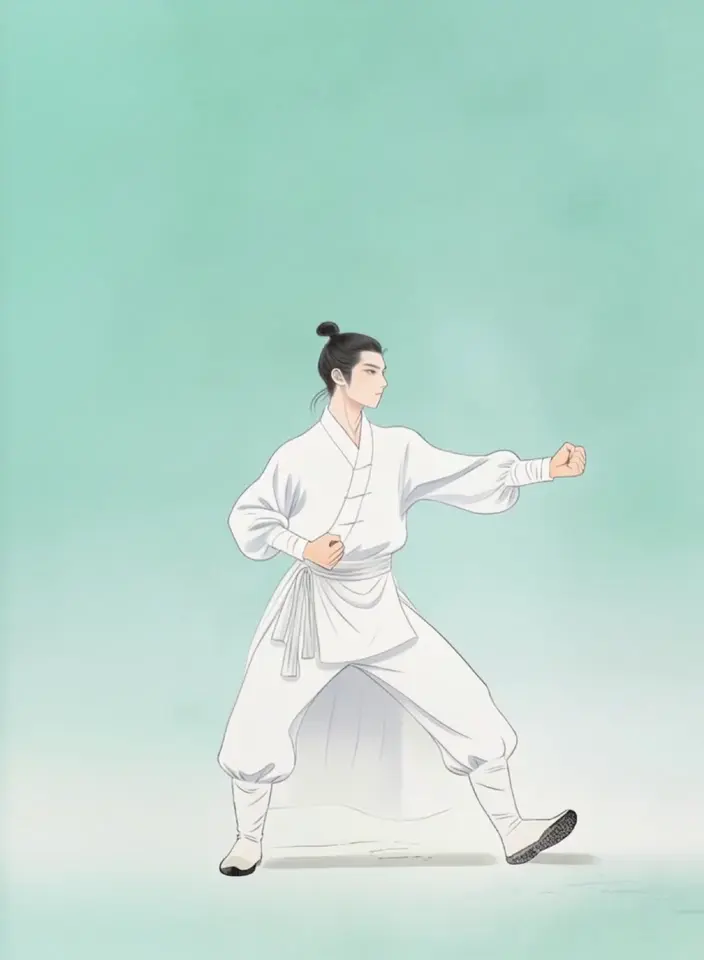
An illustrated figure follows a martial arts sequence.
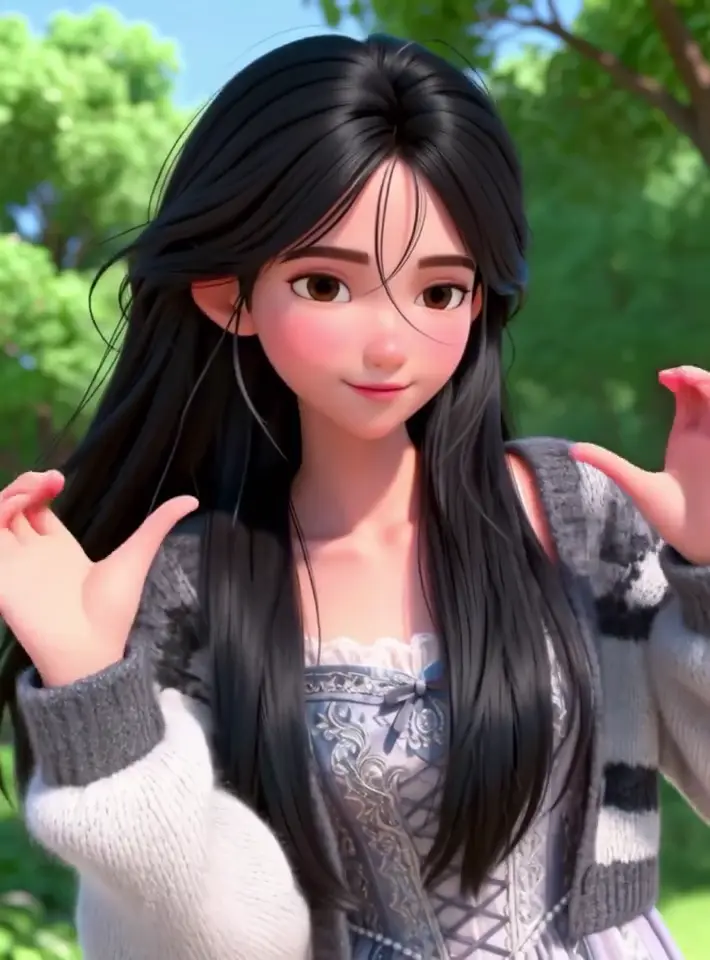
A stylized character follows detailed hand gestures.
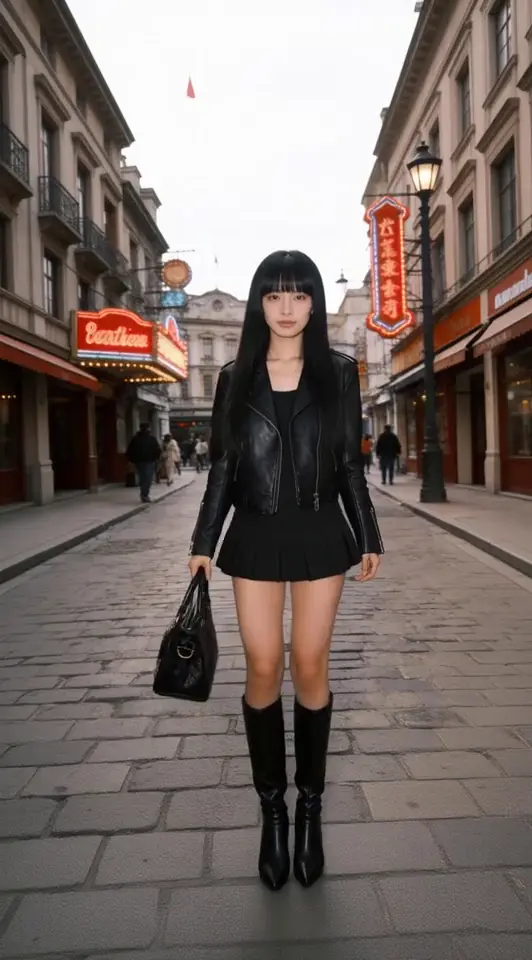
Keep the reference movement while adding a dog to the scene.
Prepare one clean subject image and one clear motion video for motion transfer.
Three steps
Choose a sharp image of one subject and a 3–30 second video where the movement is easy to see. Both are required.
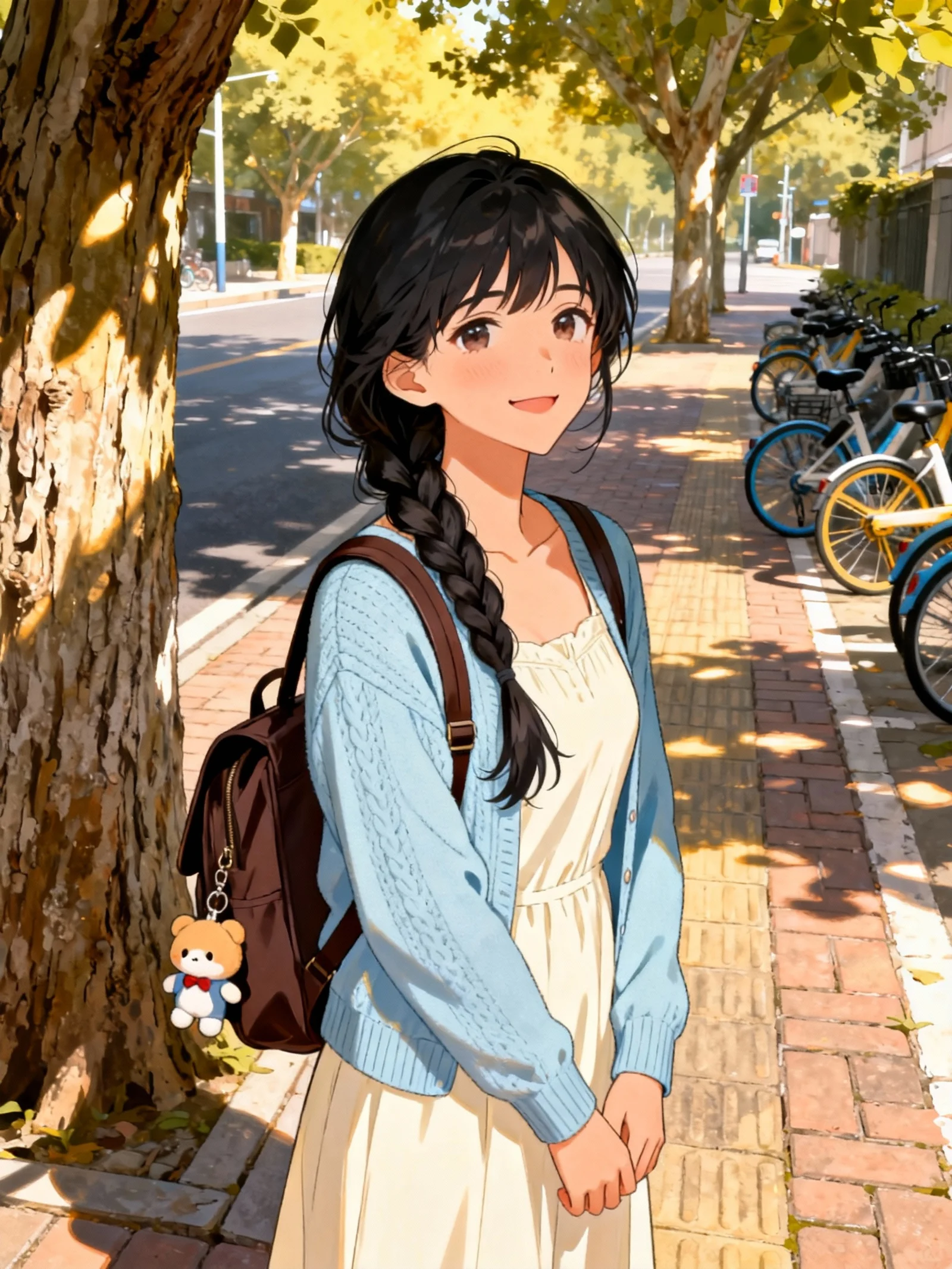
Open More settings and check Follow orientation from, which starts on Image. Image keeps the subject facing as in your image and limits the video to 10 seconds; Video follows the person in the clip, up to 30 seconds.
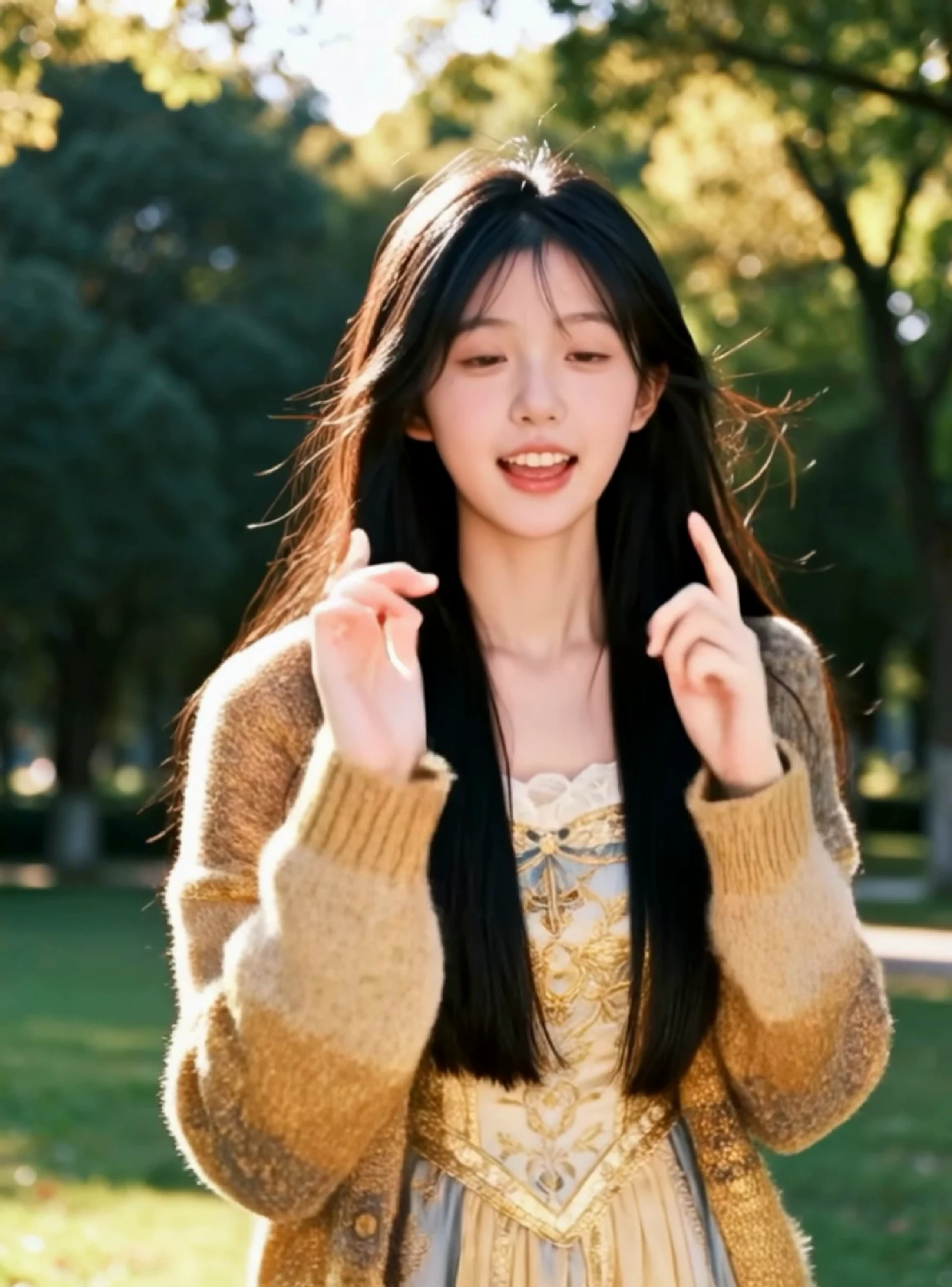
Cost is based on the length of your motion video and the resolution you choose, and it shows before you submit. The result keeps the length of the video.
SceneWish offers two Kling motion control models. They take the same inputs, so the choice is between the newer version and the earlier one.
Kuaishou
Kuaishou
Motion transfer needs an image and a video. These pages start from other inputs.
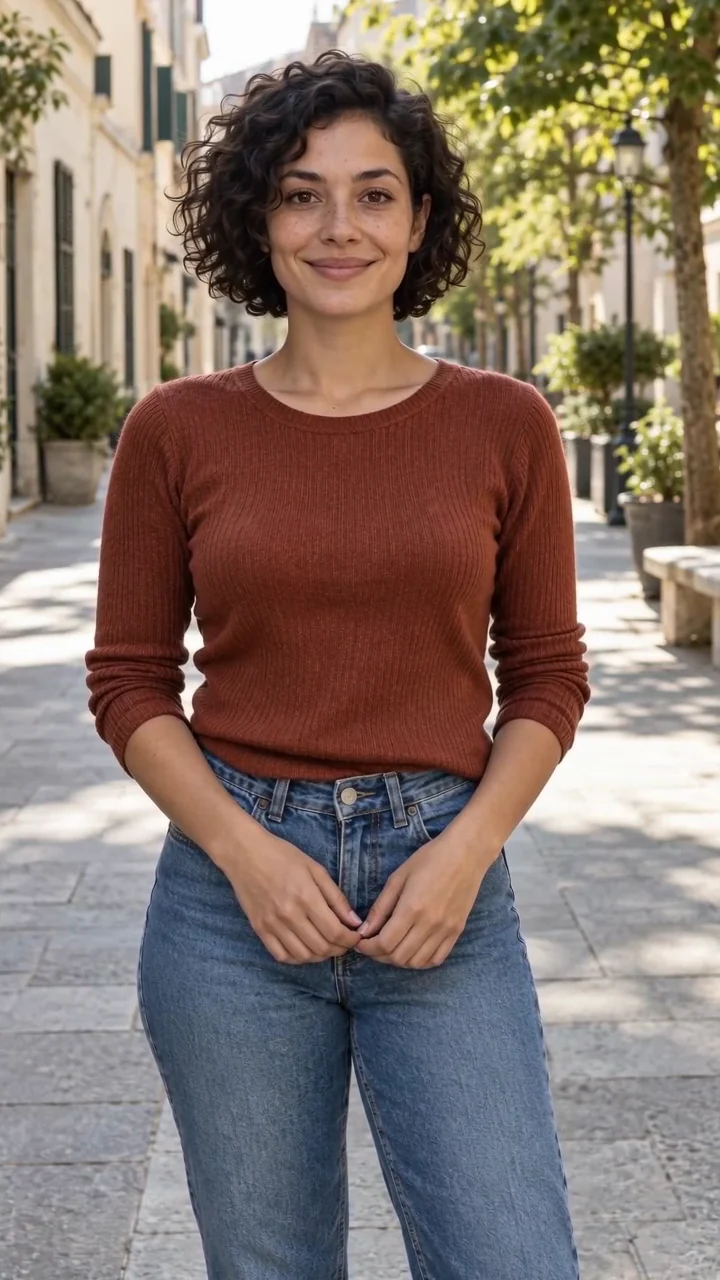
Example from the linked tool page.
Describe the movement yourself instead of supplying a video.
Open Image to Video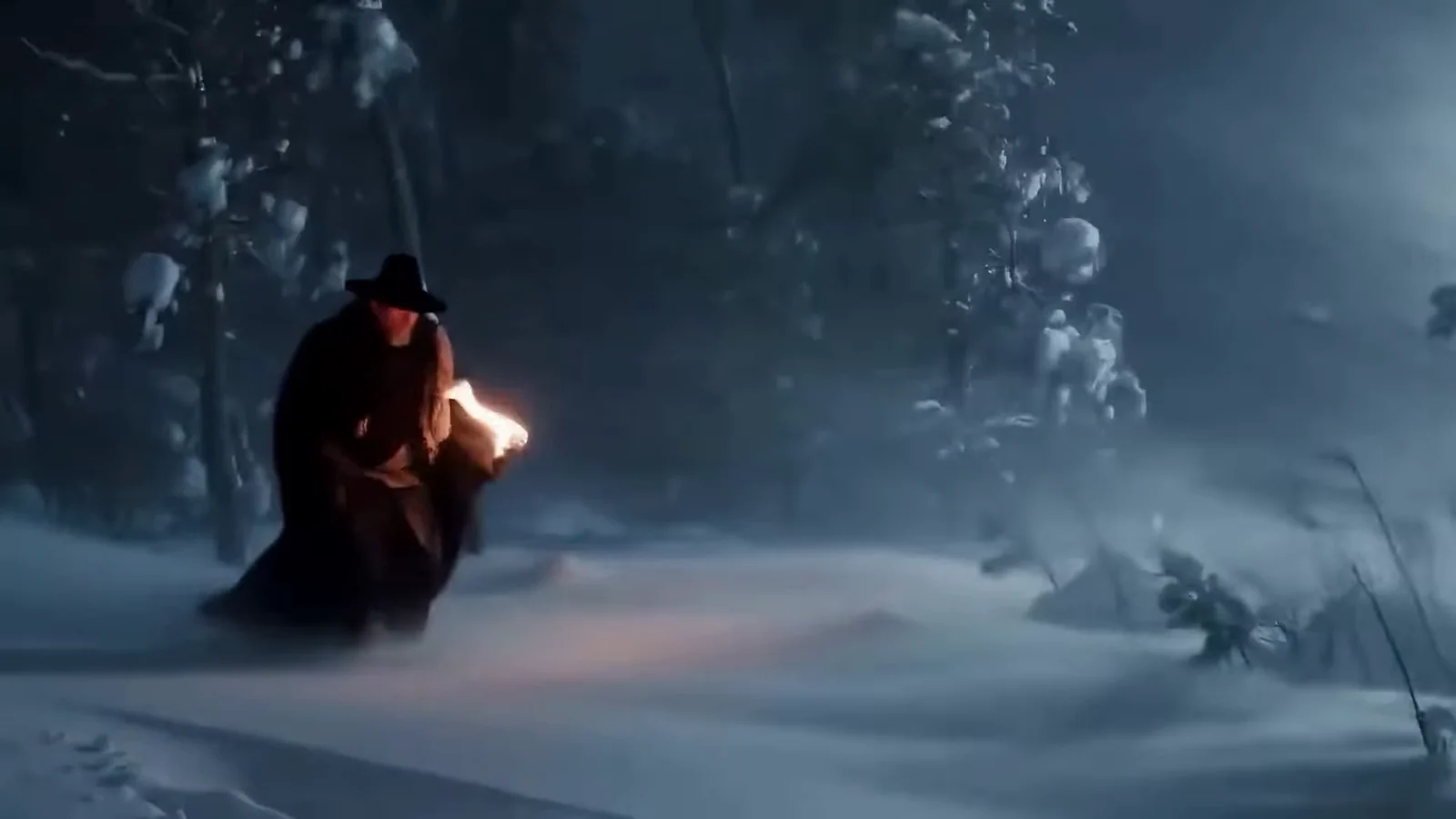
Example from the linked tool page.
Change the look or setting of an existing clip.
Open Video to Video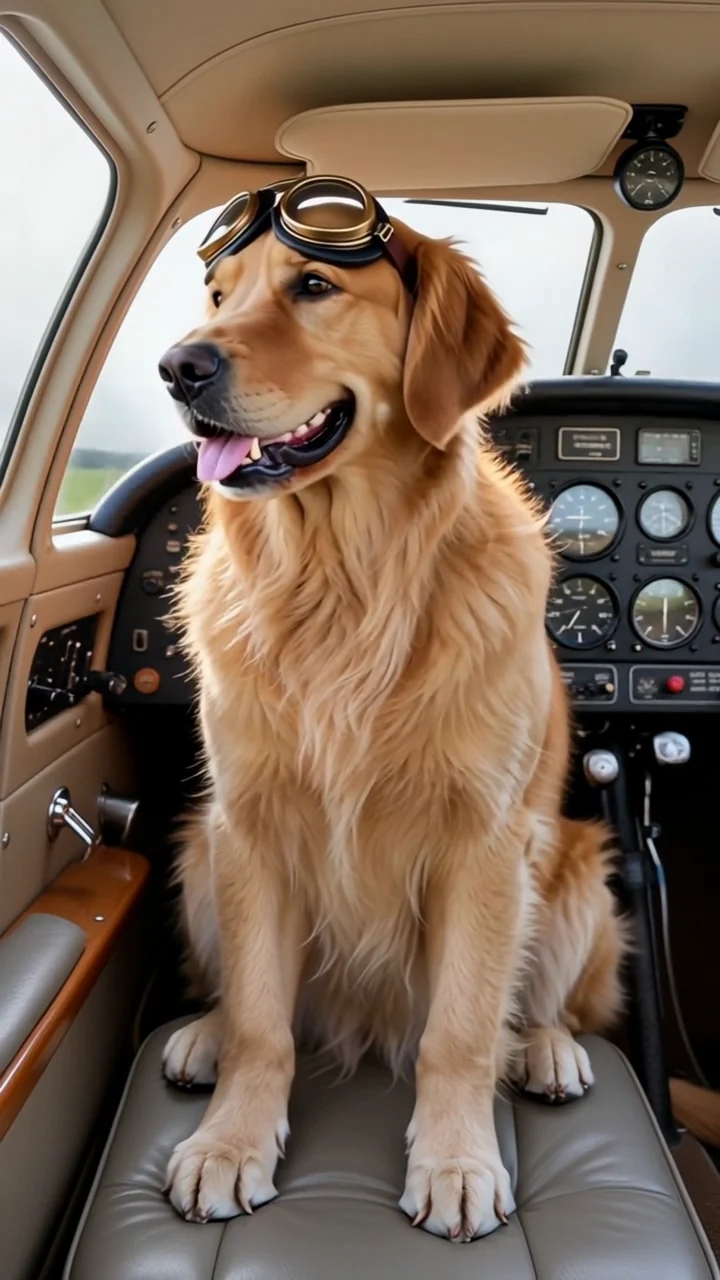
Example from the linked tool page.
Use reference images and a written scene.
Open Reference to VideoThe cost depends on the resolution and the length of your motion video, and it appears before you generate. Plans and one-time packs add credits to the same balance.
Starter
500 credits
For occasional short videos
Pro
1,000 credits
For regular video creation
Max
2,000 credits
For higher video volume
Starter
4,800 credits
For occasional short videos
Pro
9,600 credits
For regular video creation
Max
20,000 credits
For higher video volume
500 credit pack
500 credits
One-time payment. No subscription required.
1,000 credit pack
1,000 credits
One-time payment. No subscription required.
2,500 credit pack
2,500 credits
One-time payment. No subscription required.
What the two inputs do, how long the clip can be and what to expect.
Image in, movement from a video
Add a subject and a motion clip, then see how the subject performs it before you download.
Try motion transferSelected examples from this tool page. External clips retain their original source; results vary with model and input.