
Photo to Video: A Beginner’s Guide to One Clear Movement
Turn a photo to video with a start image and a simple motion prompt. Choose the right workflow, prepare your picture and review the result before downloading.
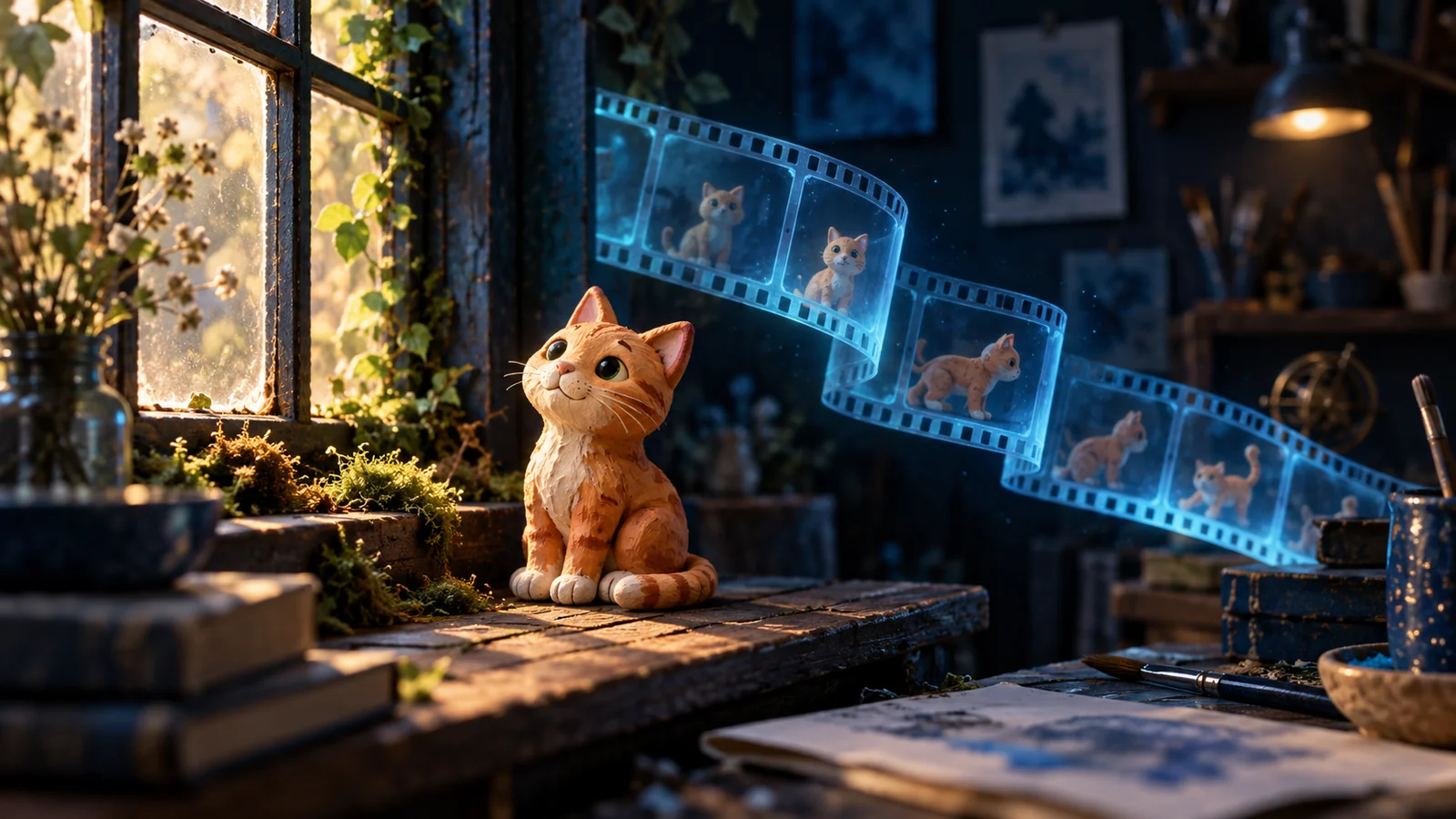
For your first photo to video clip, choose one clear image and one movement: a portrait glances toward the camera, a pet tilts its head or leaves move in a breeze. Open Image to Video, add the picture as the start image and describe that movement. Check the available settings and credit quote before generating.
The cover is an AI-generated concept illustration, not a recorded animation result.
Choose the photo to video workflow that fits
Start with the result you want. A prepared template is useful when you already like its demonstrated effect. A custom start-image prompt gives you room to describe your own movement.
- “I want this portrait to cry or make a finger heart.” Browse templates, watch the relevant example and add the required photo.
- “I have a picture and know what should move.” Use Image to Video with one start image and a short motion description.
- “I need the clip to finish on another specific picture.” Use First & Last Frame to Video; check the selected model's supported inputs.
- “I only have a scene idea, with no picture to preserve.” Start with Text to Video.
For a first photo to video attempt, the start-image workflow keeps the task small: one picture, one action and one shot. It generates new frames from your input; it is not a promise to preserve every pixel or keep a person's appearance unchanged.
Prepare a picture you can judge
Choose an image with a clear subject and enough surrounding space for the intended movement. If you want a head turn, make sure the face is readable. If you want a pet to move, check that its head and body are not already cut off by the frame. Use your own image or one you have permission to animate.
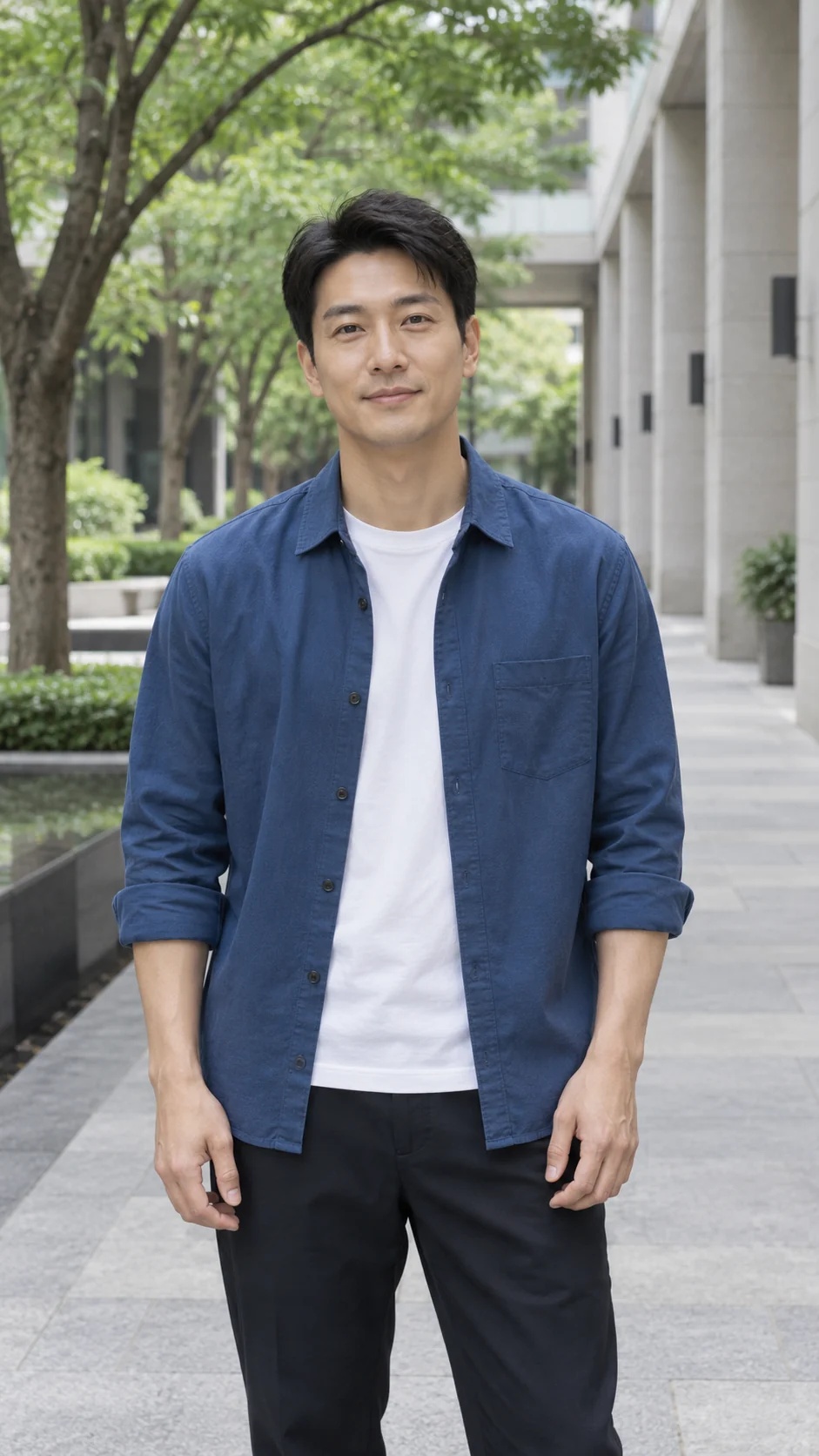
Recorded cinematic-orbit example input: a fictional adult portrait. The video below uses this image; the cover illustration does not.
For expressions, look for visible eyes and an unobstructed face. For a landscape, identify one area that should move and one that should remain stable. Check the upload guidance for the selected model before preparing a large file; supported inputs and dimensions can differ.
Write motion, then camera direction
Your picture already supplies the subject's appearance and setting. Use the prompt to explain what changes over time. Runway's Gen-4 video prompting guide similarly recommends focusing on motion and adding one element at a time. That is guidance for its model, not a guarantee for every model in SceneWish.
Try this starter pattern: [Subject movement]. [Camera movement]. [What stays visually consistent]. For a portrait, a suggested prompt is:
The subject slowly glances toward the camera and gives a small smile. The camera stays still. Keep the existing lighting and background consistent.
This is a suggested prompt, not the prompt behind the recorded clip below. Keep your first request observable. “A small smile with a still camera” gives you two things to check; “make it amazing” leaves the motion undefined. Avoid combining several actions, scene changes and camera moves in your first shot.
Generate and compare with the starting image
- Open Image to Video, sign in and add your start image.
- Enter your motion description. Select a model and review the settings it supports, including duration and output format.
- Check the current credit quote, then generate when you are ready. Selecting an example or editing a prompt does not submit a task.
- When the result is ready, play the entire clip. Compare the subject with your input, then check whether the requested action and camera movement are readable.
- Download a usable result. For another attempt, keep your image and change one instruction so you know what you are comparing.
Recorded SceneWish cinematic-orbit template example. This demonstrates its own prepared camera-motion recipe, rather than the suggested smile prompt. Open the cinematic-orbit template to inspect that workflow. Your image can produce different details.
Make the next attempt answer one question
If the subject's appearance drifts, begin with a clearer image and simplify the action. If the camera moves when you wanted a still shot, use a direct camera instruction and remove competing movement requests. If the motion is barely noticeable, name the visible action more concretely. These edits give you a focused comparison; they cannot guarantee a particular result.
Keep a result that already meets your purpose. Captions, music and combining several shots belong in your editor and do not require regenerating a good clip. Each new generation has a fresh quote, so decide what needs to change before spending more credits.
Your first photo to video attempt is ready to keep when the subject remains recognizable enough for your purpose, the intended movement is visible and the frame suits your edit. Start with your image, or use a prepared effect when its demonstrated motion is already what you want.