
How to Make an AI Crying Effect from One Photo
Make an AI crying effect with a clear portrait and a prepared template. See the recorded example, choose your photo and check the tears before sharing.
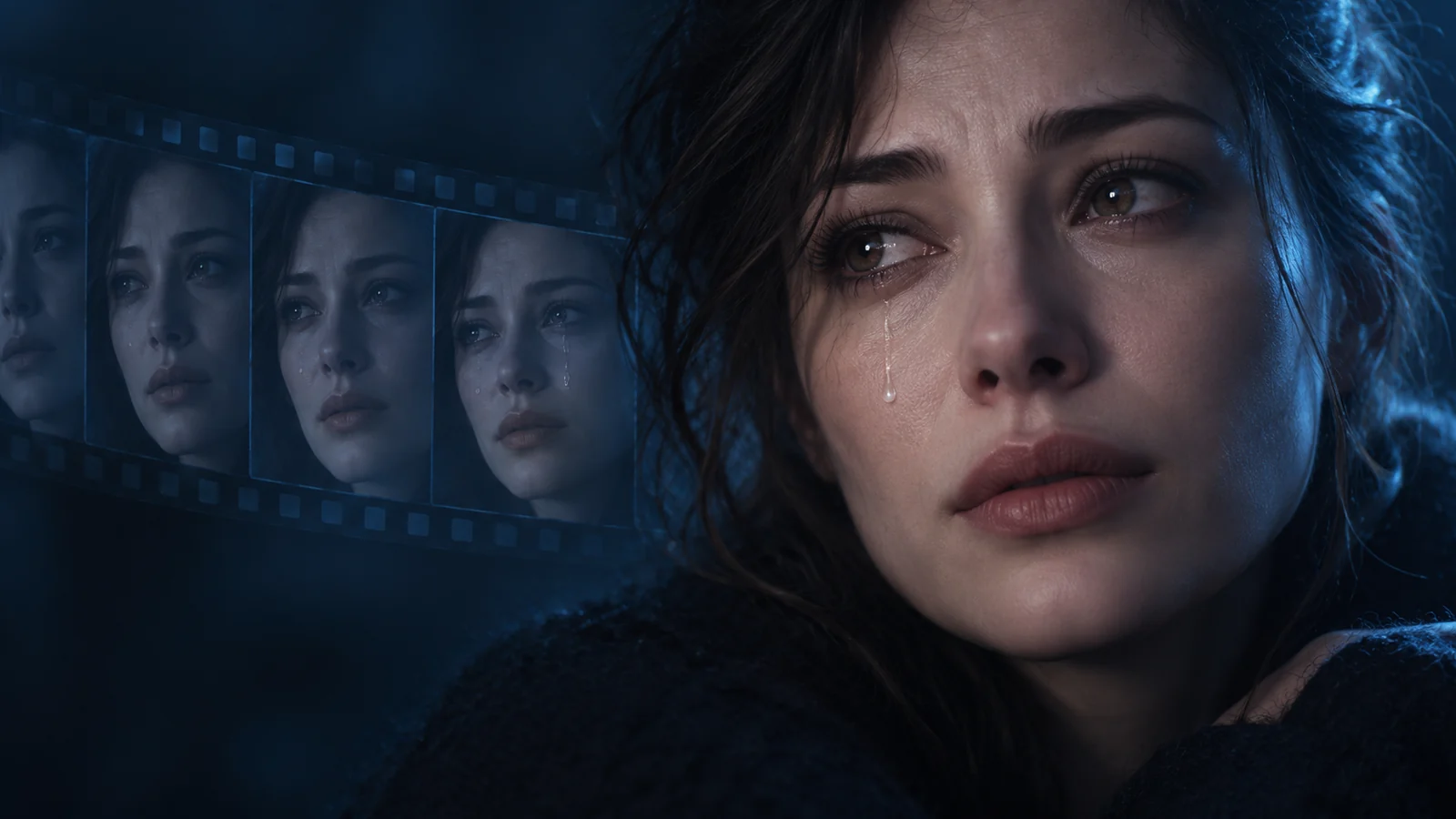
An AI crying effect turns a still portrait into a short video with a changing expression and tears. To make one in SceneWish, open the crying template, add one clear adult portrait, choose a supported format and review the credit quote before generating. The template prepares the motion; you do not need to write a prompt.
The cover is an AI-generated editorial illustration. The video below is the recorded SceneWish template example, made from a different fictional adult portrait.
Watch the AI crying effect before choosing a photo
Recorded example: Seedance 2.0, 5 seconds, 720p, with generated audio off. The preset requests a calm expression changing into restrained tears with a steady close-up. Your face and motion can differ from this example.
Play the clip and watch the eyes, cheeks and mouth. This template aims for a quiet emotional beat. If you want a dramatic scene change or a new camera angle, start with Image to Video and describe that custom motion instead. A still crying-face filter and an animated crying video are different outputs; make sure you want movement before spending generation credits.
Give the eyes and cheeks room
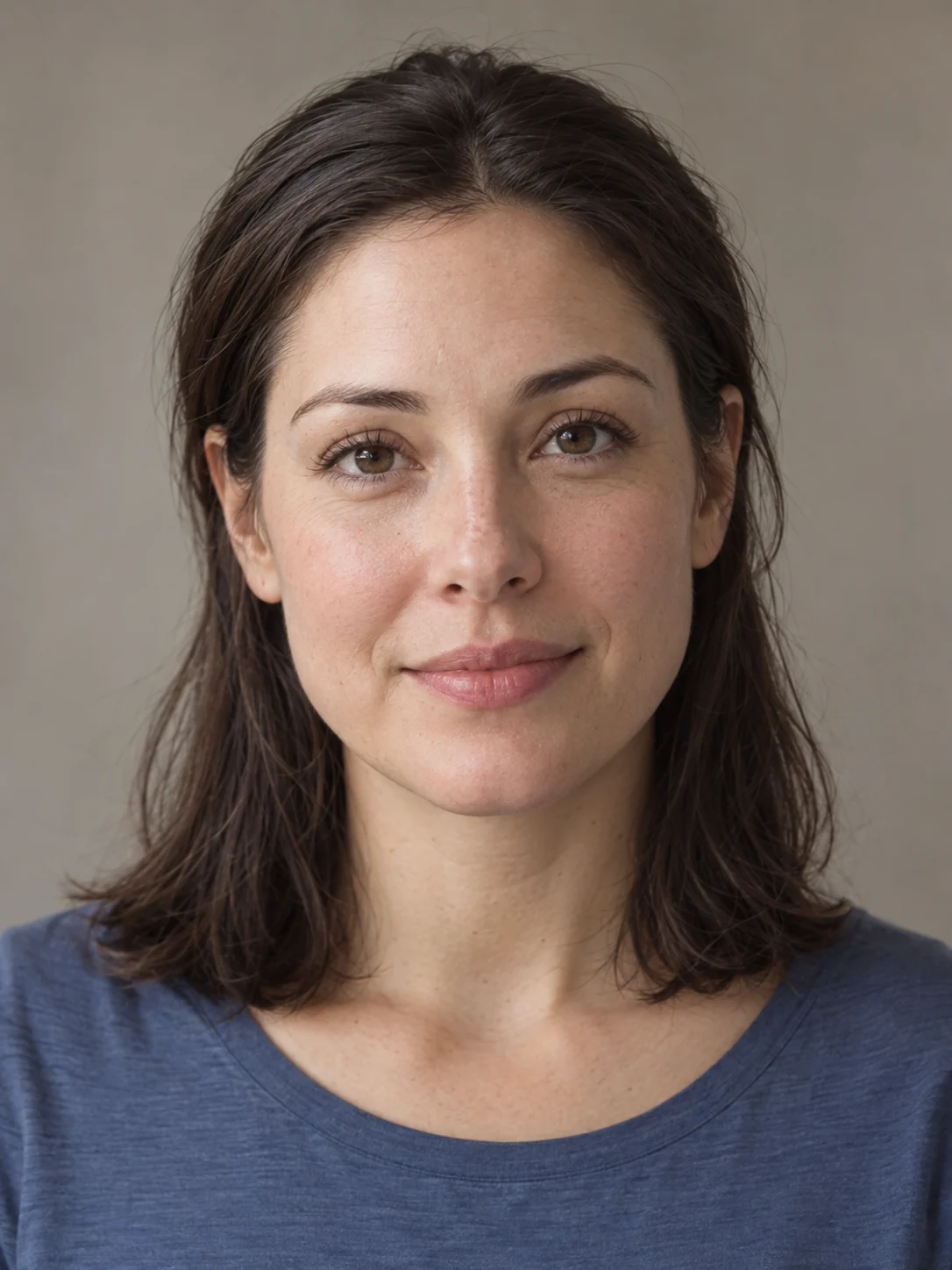
Actual input image for the recorded example above. Use it to judge framing, rather than as a promise of the same result from another photo.
Choose a photo of yourself, a fictional adult character or an adult who agreed to appear. Keep one face large enough to inspect, with both eyes and cheeks visible. Even lighting makes it easier to judge whether the finished tears belong on the face. Sunglasses, a hand over a cheek or a distant group portrait hide the areas you need to evaluate.
A useful photo check is simple: can you see a clear path from each eye down its cheek? If not, choose another image before generating. A calm expression also gives you a clear starting point for comparing the change.
Make your version with the prepared template
- Open the AI crying effect template and watch its example.
- Sign in, then add your portrait in Your portrait. Uploading or selecting a photo is preparation; use the generation control only when you are ready.
- Choose a supported aspect ratio. Use vertical for a portrait-shaped post or landscape when your edit needs a wider frame; inspect the available preview and keep the face in view.
- Review the current credit quote. You need enough eligible credits to generate; do not assume the recorded example's settings describe every future run.
- Submit once, follow the task status in the creator and play the result when it is ready. Download the version you want to keep.
The AI crying effect preset is restrained and silent. Add captions or music you can use in your video editor if the final post needs them. Opening the template does not automatically make a video.
Check the expression, then decide whether to retry
- The face changes too much: compare the eyes, nose and mouth with the input. Try a clearer, more front-facing portrait instead of adding more effects.
- Tears are hard to see: check whether hair, shadows or a hand hides the cheeks. Choose a photo with the eyes and cheeks unobstructed.
- The movement feels too dramatic or too subtle: decide whether the prepared effect matches your goal. For a different expression, use the custom Image to Video workflow.
- The clip is good, but the post feels unfinished: keep the result and add your caption or sound in an editor; another generation is unnecessary for those edits.
These are selection and review checks, not guaranteed fixes. Every new generation has its own quote and may produce different details. Avoid repeatedly submitting the same photo without deciding what you want to improve.
Before sharing, watch the whole clip once more. Use it as a fictional scene or a clearly presented creative effect, rather than evidence that someone was actually distressed. If you are ready to make your own version, add your portrait to the crying template.