
Build a Text to Video Prompt: Paper Ocean Walkthrough
Turn a scene idea into a text to video prompt. Follow the recorded Paper Ocean example, choose one change and check your clip before sharing.
Start with a moment you would like to watch: a paper whale swimming through folded coral, a mushroom opening in moss or a quiet character greeting. A useful text to video prompt names the subject, what it does and how the camera sees it. You can write that idea yourself, or use a recorded SceneWish recipe as your starting point.
This walkthrough uses Paper Ocean, a SceneWish-generated clip with its recorded prompt and settings. It shows one result, rather than a promise that another generation will match it. Open the Paper Ocean recipe to watch the example and prepare it in the creator; opening or selecting the recipe does not generate a video.
See the scene before you write
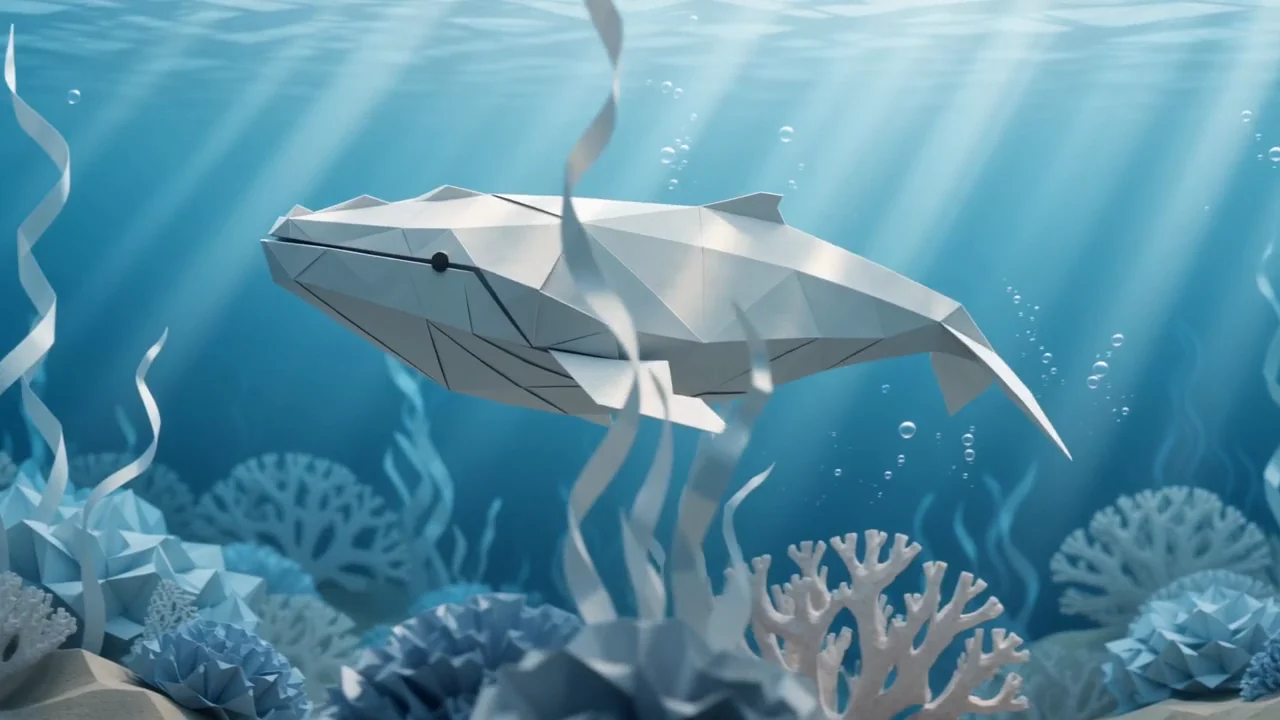
Recorded SceneWish example: Seedance 2.0, 5 seconds, 720p, landscape 16:9, without generated audio. Play it to inspect the motion; the cover alone cannot show how the shot develops.
Look for the whale's movement, the paper folds and the camera following alongside it. Those are separate parts of the idea. If you like the whole scene, start with the saved recipe. If you only like its visual style, decide which part you want to change before editing the prompt.
Break the text to video prompt into decisions
Here is the recorded prompt used for this example:
A friendly low-poly paper whale glides slowly through an underwater garden of folded coral and ribbon-like seaweed. Small transparent bubbles rise around it. The camera tracks gently alongside the whale. Visible paper folds, soft blue sunlight from above, consistent geometric shapes, one continuous shot, no letters or logos.
The prompt gives the model a subject and action first. The folded coral supplies a setting; the paper folds and blue light define its look. The camera instruction describes how the viewer moves through the scene.
| Your decision | In the recorded example | What to decide for your clip |
|---|---|---|
| Subject | A paper whale | Who or what should hold attention? |
| Action | Glides slowly | What single movement should the viewer notice? |
| Setting and look | Folded coral, seaweed, blue light | Which details make the place recognizable? |
| Camera | Tracks alongside the whale | Should the camera stay still or follow the subject? |
You do not need every cinematic term you know. In your prompt, write the details you want to judge in the result. “A playful ocean” leaves the movement open; “a paper whale glides through folded coral” gives you an action to look for.
To draft your prompt, fill in this brief: [Subject] [action] in [setting]. The camera [stays still or follows the subject]. [Material or lighting that matters]. Leave out a detail when you are happy for the model to choose it; keep the decisions you want to check in the finished clip.
Make one deliberate change
For your next version, you might replace the whale with a paper turtle while keeping the garden and camera direction. Or keep the whale and ask for a stationary camera. These are suggested variations, not recorded SceneWish outputs.
Change one part first so you know what you are comparing. If you change the subject, style, lighting and camera together, a different result will not tell you which edit caused the difference. Keep your original wording somewhere you can return to.
If the subject must be your own face, pet or a particular object, start with Image to Video instead. Use a start frame to guide the opening shot, or a supported reference mode to guide a subject in a new scene. If you want a prepared gesture or pet effect, browse the video templates; you do not need to invent the motion prompt for those presets.
Prepare your clip in SceneWish
- Open the Paper Ocean recipe, then choose Use this prompt. Review any draft replacement request before accepting it.
- Keep the recorded prompt or edit the one part you chose. The recipe prepares its model and settings; check that they suit the format you want.
- Sign in and check the current credit quote before generating. Available settings and cost depend on the model; the example's settings are a starting point.
- Start a generation when you are ready. Loading a recipe alone does not submit a task or use generation credits.
Check the movement before sharing
Play the completed clip before downloading it. Check that the subject stays recognizable, its movement is readable and the camera behaves as you intended. For Paper Ocean, also inspect whether the whale and coral keep their paper shapes as the viewpoint moves.
If one detail is off, describe the movement more concretely or simplify the camera direction for another take. A new generation has its own quote and can produce different details, even with the same prompt.
Download the version you want to keep. Add captions, sound or other shots in your editing app if you need a longer post. Your completed video also appears in My Assets. To start a different scene from words, open Text to Video and use the same subject–action–camera decisions for your own idea.